Mastering 360° Video Editing in Final Cut Pro: Tilt the Viewer Down with This Keyboard Shortcut
If you’re working with 360° video in Final Cut Pro, you know that navigating through the spherical footage can be tricky. You want to make sure every part of the scene is polished and framed correctly, but sometimes, that means moving your point of view in the 360° space.
One useful keyboard shortcut that can make your editing workflow smoother is the Control-Option-Command-Down Arrow shortcut. This simple command helps you tilt the 360° Viewer downward, allowing you to refine your shot and inspect specific areas of your footage. Here's a breakdown of what this shortcut does and how editors can use it effectively while editing 360° video in Final Cut Pro.
What Does the Control-Option-Command-Down Arrow Shortcut Do?
The Control-Option-Command-Down Arrow shortcut in Final Cut Pro is designed to tilt the 360° Viewer down. If you’re unfamiliar with the 360° Viewer, it’s a tool within Final Cut Pro that lets you view and edit 360-degree video content. Since 360° video encompasses a full sphere, the Viewer gives you the ability to look around and inspect different angles of the scene.
By pressing this shortcut, you shift the viewer’s angle downward, allowing you to look at the bottom half of your 360° video. This is particularly helpful when you need to focus on details that are outside the initial frame or to ensure no unwanted objects or distractions are hidden out of view.

How Can Editors Use This Shortcut?
When working with 360° footage, editors need to constantly move around the scene to ensure everything looks perfect from every angle. The Control-Option-Command-Down Arrow shortcut can be used in a variety of ways during your editing process.
1. Refining the Shot
Sometimes, a scene might look great from one angle but contain unwanted elements in another. For instance, objects or crew members might be visible in the bottom of the frame. Using the tilt-down function lets you adjust the view and check the lower part of your 360° video to ensure everything is in place.
2. Examining Effects and Annotations
If you’ve added effects, annotations, or graphics to your 360° footage, the tilt function helps you verify how those elements are positioned within the full 360-degree space. For example, if you’ve placed text or other objects in a specific spot, tilting the viewer down allows you to make sure these elements are properly aligned and visible from the intended angle.
3. Adjusting the Camera Position
360° video requires careful camera positioning to ensure an immersive and cohesive viewer experience. If your video is shot in a way that the viewer’s attention is directed to a certain spot in the sphere, you might need to adjust your angle. The Control-Option-Command-Down Arrow shortcut allows you to manipulate the camera view, ensuring your video is framed perfectly and everything important to the story is in view.
4. Enhancing Scene Transitions
Editing transitions in 360° video can be a little more complex than in traditional video. Sometimes, you need to check how a transition appears from multiple angles, especially from the top and bottom. By tilting the 360° Viewer down, you can make sure that transitions between scenes, cuts, or effects work smoothly across the entire spherical environment.
Practical Workflow Example
Let’s say you're editing a 360° video of a live event. After trimming and arranging your footage, you notice that some props in the bottom of the frame aren't where you'd like them to be. Pressing Control-Option-Command-Down Arrow will tilt the view down, helping you see the lower part of the sphere clearly. From there, you can crop, adjust, or mask out any distractions to make the final shot more polished.
Conclusion
Mastering the use of the Control-Option-Command-Down Arrow keyboard shortcut in Final Cut Pro is an essential skill for editors working with 360° video. It allows you to tilt the 360° Viewer down to inspect all areas of your footage, refine compositions, and ensure your video is perfectly framed from every angle. Whether you’re fixing a shot, verifying effects, or adjusting the camera view, this simple shortcut helps streamline the editing process and elevate the quality of your 360° video projects.
Happy editing!


Related tutorials
-

How to Use the Control-Option-Command-Right Arrow Shortcut in Final Cut Pro for 360° Video Editing
If you're working with 360-degree video in Final Cut Pro , one of the most helpful tools at your disposal is the ability to quickly navigate your footage…
-
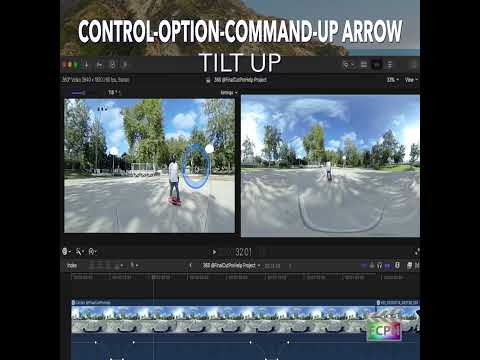
Mastering the Control-Option-Command-Up Arrow Shortcut for 360° Video Editing in Final Cut Pro
Final Cut Pro is one of the most powerful video editing tools available, offering a vast array of features for editors working with both standard and…
-

How to Use the Control-Option-Command-0 Shortcut to Reset the 360° Viewer in Final Cut Pro
When you work with 360° video in Final Cut Pro, the 360° Viewer lets you look around the sphere as if you were wearing a headset. After a lot of panning…