How to Use the Control-Option-Command-Right Arrow Shortcut in Final Cut Pro for 360° Video Editing
Keyboard shortcut: ControlOptionCommandRight Arrow
If you're working with 360-degree video in Final Cut Pro, one of the most helpful tools at your disposal is the ability to quickly navigate your footage in all directions. The Control-Option-Command-Right Arrow keyboard shortcut is a simple yet powerful way to pan the 360° Viewer to the right, allowing you to get a better look at specific parts of your footage as you edit.
What Does the Control-Option-Command-Right Arrow Shortcut Do?
This keyboard shortcut is used to pan the 360° Viewer to the right in Final Cut Pro. When working with 360-degree footage, you're essentially editing a sphere, and the 360° Viewer lets you navigate around that sphere to see your video from any angle. Using this shortcut shifts the view to the right, making it easier to focus on different areas of the scene.

Why is it Useful for Editors?
As an editor, you're likely working with footage that can be viewed in any direction. Panning right with this shortcut helps streamline the process of navigating through the 360° environment and speeds up your workflow. Here are a few key reasons why this shortcut is so valuable for editors:
1. Smooth Navigation
When editing 360° video, you'll often need to move around the footage to analyze specific sections. The Control-Option-Command-Right Arrow shortcut lets you quickly pan the 360° Viewer to the right, making it much easier to explore the scene without needing to manually drag the viewer. This helps you maintain focus and save time as you move around the video.
2. Track Moving Objects or Subjects
360-degree video editing often involves tracking subjects that move across the scene. If you're following an object or a person within the 360° space, panning right can help you quickly shift focus and keep the subject in view. This is especially helpful when you're dealing with dynamic footage where subjects don’t stay in one place.
3. Fine-Tuning Edits
When working with 360° videos, small adjustments can make a big difference. Whether you're adding effects, transitions, or cuts, it's important to view the footage from the right angle to ensure your edits are seamless. The Control-Option-Command-Right Arrow shortcut allows you to pan right easily, helping you make those adjustments without losing your place.
4. Change Your Orientation with Ease
360-degree video gives you the freedom to view footage from any angle. However, that flexibility can also make it difficult to maintain orientation. With this shortcut, you can quickly change your view, making it easier to assess different parts of the footage from various perspectives.
How to Use the Shortcut Effectively
Using the Control-Option-Command-Right Arrow shortcut is as simple as pressing all four keys at once. Here's how to incorporate it into your editing process:
- Open Your 360° Video in Final Cut Pro: Ensure that your 360-degree footage is loaded into the timeline, and that the 360° Viewer is activated.
- Use the Shortcut: Press Control + Option + Command + Right Arrow to pan the 360° Viewer to the right. You’ll see the view shift smoothly, allowing you to focus on different parts of your scene.
- Combine with Other Editing Tools: The shortcut works in conjunction with other navigation tools, like zooming and rotating the 360° Viewer, giving you full control over your editing environment.
- Refine Your Work: As you make adjustments or add effects, use the shortcut to fine-tune your view and ensure that every element of your 360° video looks just right.
Conclusion
In the world of 360-degree video editing, efficiency and precision are key. The Control-Option-Command-Right Arrow keyboard shortcut in Final Cut Pro is a simple yet effective tool that helps editors pan their 360° video to the right with ease. Whether you're tracking movement, making frame-by-frame adjustments, or changing your viewing angle, this shortcut will save you time and improve your workflow.
Start using it today, and take your 360° video editing to the next level!


Related tutorials
-
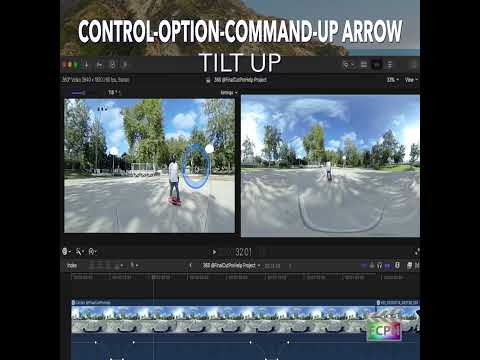
Mastering the Control-Option-Command-Up Arrow Shortcut for 360° Video Editing in Final Cut Pro
Final Cut Pro is one of the most powerful video editing tools available, offering a vast array of features for editors working with both standard and…
-

How to Use the Control-Option-Command-Left Arrow Shortcut to Pan 360° Video in Final Cut Pro
If you're working with 360° video in Final Cut Pro , you're probably familiar with the complexities of navigating a spherical video environment. Editing…
-

How to Use the Control-Option-Command-0 Shortcut to Reset the 360° Viewer in Final Cut Pro
When you work with 360° video in Final Cut Pro, the 360° Viewer lets you look around the sphere as if you were wearing a headset. After a lot of panning…