Mastering the Control-Option-Command-Up Arrow Shortcut for 360° Video Editing in Final Cut Pro
Keyboard shortcut: ControlOptionCommandUp Arrow
Final Cut Pro is one of the most powerful video editing tools available, offering a vast array of features for editors working with both standard and immersive video formats. One standout feature for 360° video editors is the 360° Viewer, which allows you to explore and manipulate spherical content in real time.
For editors working on 360° projects, time efficiency and precision are essential. Mastering specific keyboard shortcuts, like the Control-Option-Command-Up Arrow, can significantly improve your editing workflow. In this post, we’ll explore what this shortcut does and how it benefits 360° video editors in Final Cut Pro.
What Does the Control-Option-Command-Up Arrow Shortcut Do?
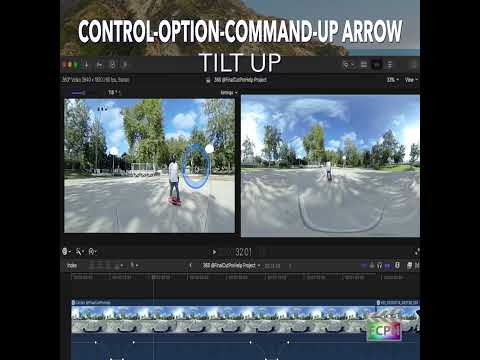
The Control-Option-Command-Up Arrow keyboard shortcut is used to tilt the 360° Viewer upward in Final Cut Pro. When editing 360° video, the viewer provides a spherical representation of your footage, and navigating that sphere is crucial for focusing on the right areas of the scene.
Using this shortcut tilts the 360° view upward, which is particularly useful when you need to adjust your perspective of the scene quickly—without manually dragging or rotating the 360° viewer interface.
How Editors Can Use This Shortcut
1. Quickly Adjust the Viewpoint
When editing 360° video, it’s crucial to see the correct parts of the scene in the Viewer. Whether you're focusing on specific details or ensuring that your framing is accurate, this keyboard shortcut allows you to instantly tilt the viewer up. This quick adjustment helps editors get a better angle or check particular elements, especially in large-scale 360° environments that require constant repositioning.
2. Fine-Tune the Viewer Position
In immersive video editing, the viewer is your window into the scene. Editors often need to fine-tune their perspective—whether to follow a moving subject or align elements within the sphere. The Control-Option-Command-Up Arrow shortcut lets editors shift the viewer’s tilt without disrupting the workflow. This small but precise movement is key when perfecting the visual composition of a 360° scene.
3. Streamline Your Workflow
Time is of the essence in video editing, and the more efficient you are, the more creative and productive you can be. Using the Control-Option-Command-Up Arrow shortcut lets you adjust your 360° viewer on the fly, reducing the time spent clicking and dragging controls. This allows you to focus more on the creative aspects of editing.
4. Enhance Precision in Post-Production
When working with immersive content, every angle matters. Whether you're editing a VR film, a 360° music video, or interactive content, tilting the viewer with a single keyboard command allows for precise adjustments. It’s a small but mighty tool that helps ensure your video is perfectly aligned from every angle.
Tips for Editors:
- Combine Shortcuts: Editors can use the Control-Option-Command-Up Arrow shortcut in combination with other 360° Viewer controls to navigate the sphere more efficiently. For example, use Control-Option-Command-Down Arrow to tilt the viewer downward, and Control-Option-Command-Left/Right Arrow to pan left or right. Mastering these shortcuts will enable seamless navigation through your 360° video.
- Use the Viewer’s On-Screen Controls for Finer Adjustments: While the keyboard shortcut helps tilt the viewer quickly, you might need finer control at times. The on-screen controls in the 360° Viewer allow for more precise adjustments, especially when you’re aiming for a specific angle or framing.
- Practice Makes Perfect: Navigating 360° video can feel tricky at first. However, with practice, using these shortcuts will become second nature, and your workflow will improve significantly. The more you use the keyboard commands, the smoother and faster your editing process will be.
Conclusion
Mastering keyboard shortcuts like the Control-Option-Command-Up Arrow is essential for becoming a faster, more efficient editor when working with 360° video in Final Cut Pro. This simple yet powerful shortcut allows you to tilt the 360° Viewer upward quickly, enabling precise control over your video’s perspective. Whether you’re adjusting your viewpoint to focus on a specific detail or fine-tuning your overall composition, this shortcut is a valuable tool in your editing arsenal.
By incorporating these shortcuts into your workflow, you’ll not only save time but also enhance the quality of your immersive video projects. Happy editing!



Related tutorials
-

How to Use the Control-Option-Command-Right Arrow Shortcut in Final Cut Pro for 360° Video Editing
If you're working with 360-degree video in Final Cut Pro , one of the most helpful tools at your disposal is the ability to quickly navigate your footage…
-

How to Use the Control-Option-Command-Left Arrow Shortcut to Pan 360° Video in Final Cut Pro
If you're working with 360° video in Final Cut Pro , you're probably familiar with the complexities of navigating a spherical video environment. Editing…
-

How to Use the Control-Option-Command-0 Shortcut to Reset the 360° Viewer in Final Cut Pro
When you work with 360° video in Final Cut Pro, the 360° Viewer lets you look around the sphere as if you were wearing a headset. After a lot of panning…