How to Use the Option-Command-Up Arrow Shortcut in Final Cut Pro
Keyboard shortcut: OptionCommandUp Arrow

Sometimes a clip in your primary storyline would work better as a connected clip, layered above your edit instead of part of it. Option-Command-Up Arrow makes that move without shifting anything else in your timeline.
What It Does
Option-Command-Up Arrow runs Lift from Storyline. It lifts the selected clip out of the storyline, puts a gap clip of the same length where it was, and connects the lifted clip to that gap. The clip stays in your project, in exactly the same place in time. It's just no longer part of the storyline.
This isn't a delete. Nothing is removed from your project, and nothing after the clip moves.
How to Use It
- In the Timeline, select a clip in the primary storyline.
- Press Option-Command-Up Arrow.
- The clip moves up and becomes a connected clip, with a gap clip underneath it.
When to Use It
- Making room underneath: Lift a shot so you can put a different clip in the gap below it and layer the two.
- Freeing a clip to move: As a connected clip, it can be slid around without rippling the rest of your edit.
Tips
- To put a connected clip back into the primary storyline, select it and press Option-Command-Down Arrow (Overwrite to Primary Storyline).
- If you just want the clip gone but your timing kept, select it and press Shift-Delete to replace it with a gap instead.
- You can always press Command-Z to undo.
Lift from Storyline is a quick way to turn a storyline clip into a layer while keeping your edit's timing exactly the same.


Related tutorials
-
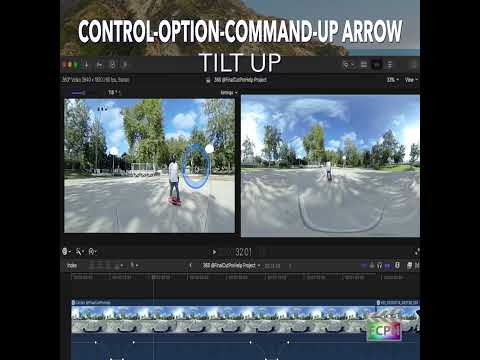
Mastering the Control-Option-Command-Up Arrow Shortcut for 360° Video Editing in Final Cut Pro
Final Cut Pro is one of the most powerful video editing tools available, offering a vast array of features for editors working with both standard and…
-

How to Use the Control-Option-Command-Right Arrow Shortcut in Final Cut Pro for 360° Video Editing
If you're working with 360-degree video in Final Cut Pro , one of the most helpful tools at your disposal is the ability to quickly navigate your footage…
-
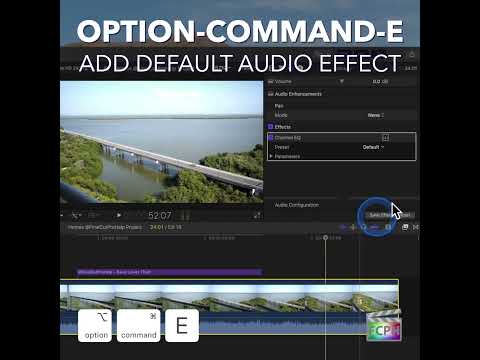
How to Speed Up Your Audio Editing Workflow in Final Cut Pro with the Option-Command-E Shortcut
If you're an editor working in Final Cut Pro , you know that audio is just as important as video when it comes to creating a polished, professional final…