How to Speed Up Your Audio Editing Workflow in Final Cut Pro with the Option-Command-E Shortcut
Keyboard shortcut: OptionCommandE
If you're an editor working in Final Cut Pro, you know that audio is just as important as video when it comes to creating a polished, professional final product. Whether you're working on a podcast, a documentary, or a commercial, applying consistent audio effects is a crucial part of the process. However, constantly hunting through menus to apply the same effects over and over can be time-consuming.
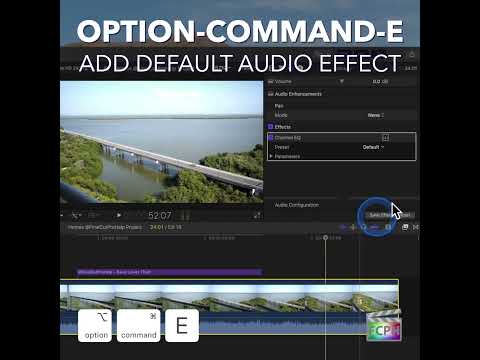
Thankfully, Final Cut Pro offers a neat shortcut to streamline this task: Option-Command-E, which adds a default audio effect to your selected audio clip. If you’re not already using this keyboard shortcut, it’s time to start! Let’s dive into how this can improve your audio editing workflow.
What Does Option-Command-E Do in Final Cut Pro?
In Final Cut Pro, pressing Option-Command-E applies the default audio effect to the selected audio clip. This effect could be anything from an equalizer (EQ), a compressor, a noise reduction tool, or any other audio effect you use frequently in your editing process.
Here’s the key point: instead of manually searching through the Effects Browser each time you need to apply an audio effect, you can instantly apply your default effect with this simple keyboard shortcut.
Why Editors Love This Shortcut
- Speeds Up the Process
When editing multiple audio clips — whether balancing levels or cleaning up sound — you’ll often apply the same effect across several clips. The Option-Command-E shortcut saves time by letting you apply your default effect quickly and consistently. No need to open the Effects Browser each time — just select the clip and hit the shortcut. - Consistent Audio Processing
For editors working on projects with a standard audio treatment (e.g., subtle EQ adjustment or light compression), using the default audio effect ensures consistency. You don’t have to worry about forgetting to apply the effect or selecting the wrong one — it’s always ready with the press of a button. - Frees You Up to Focus on Fine-Tuning
After applying the effect with Option-Command-E, you can jump straight to tweaking the settings in the Inspector panel. This way, you spend less time navigating menus and more time crafting the perfect sound for your project.
How to Set Up and Use the Default Audio Effect
To make the most of the Option-Command-E shortcut, it’s important to have a default audio effect set in Final Cut Pro. Here’s how you can set it up:
- Apply an Effect
In the Effects Browser, choose an audio effect you commonly use, such as an equalizer, noise reduction tool, or compressor. Drag it onto an audio clip. - Make it the Default
In the Effects browser, Control-click (or right-click) the effect and choose Make Default Audio Effect. Now, this will be the effect that gets applied when you use the Option-Command-E shortcut. - Apply to New Clips
Select a new audio clip in the timeline, and then press Option-Command-E to instantly apply your default effect.
When to Use the Option-Command-E Shortcut
Editors can use the Option-Command-E shortcut whenever they need to apply their default audio effect to a new clip. Here are a few common scenarios:
- Audio Cleanup: Quickly apply noise reduction or EQ adjustments to clean up background noise or balance audio frequencies.
- Compression and Limiting: Apply your standard compressor or limiter settings to make the audio more consistent in volume across multiple clips.
- Adding Reverb or Effects: When adding subtle effects like reverb or delay to voiceovers or music beds, this shortcut ensures you’re applying the same effect each time, saving time and maintaining uniformity across clips.
Final Thoughts
The Option-Command-E shortcut in Final Cut Pro is a simple but powerful tool that can drastically improve your audio editing workflow. By setting a default audio effect, you can quickly apply the same treatment to multiple clips with just one keystroke, saving time and ensuring consistency across your project. Whether you’re adjusting levels, cleaning up noise, or adding subtle effects, this shortcut helps you get the job done faster and more efficiently.
Next time you’re deep in your audio edit, remember: Option-Command-E is here to speed up your process and give you more time to focus on the creative aspects of your project.


Related tutorials
-
Mastering the Control-Option-Command-Up Arrow Shortcut for 360° Video Editing in Final Cut Pro
Final Cut Pro is one of the most powerful video editing tools available, offering a vast array of features for editors working with both standard and…
-
Mastering the Option-Shift-Command-S Shortcut in Final Cut Pro: How to Use Audio Lanes to Boost Your Editing Efficiency
As a video editor working in Final Cut Pro, it's essential to have the right tools at your fingertips to streamline your workflow and stay organized…
-

How to Use the Option-Command-Up Arrow Shortcut in Final Cut Pro
Sometimes a clip in your primary storyline would work better as a connected clip, layered above your edit instead of part of it. Option-Command-Up Arrow…