How to Use the Control-Option-V Shortcut to Apply the Video Role in Final Cut Pro
Keyboard shortcut: ControlOptionV

Roles are labels that Final Cut Pro uses to organize your clips, control how they're colored in the timeline, and decide how they're grouped when you export. Control-Option-V is the quickest way to put a clip on the standard Video role.
What Does Control-Option-V Do?
Control-Option-V runs Roles: Apply Video Role. It applies the Video role to the selected clip.
There's no dialog or list to choose from. The clip is assigned the built-in Video role right away. If you want a different video role, such as one you created yourself, you assign it from the Modify menu or the Info inspector instead.
How to Use It
- In the timeline (or Browser), select the clip or clips you want to change.
- Press Control-Option-V.
- Check the result: the clip's video role is now Video, and its timeline color reflects that role.
Why Roles Matter
- Organization: In the Timeline Index, the Roles view lets you highlight or turn off clips by role, so you can see the project without titles or B-roll, for example.
- Color coding: Clips are colored by role, so a quick glance shows what kind of content is where.
- Exporting: When you share, roles let you export separate files or stems for different kinds of content.
Practical Tips
- Use Control-Option-V to clean up clips that picked up the wrong video role, before you share your project.
- Video roles and audio roles are separate. This shortcut changes only the video role; a clip's audio role stays the same.
A quick role cleanup makes your Timeline Index more useful and your exports more predictable.




Related tutorials
-

How to Use the Control-Option-D Shortcut to Apply Dialogue Role in Final Cut Pro
Final Cut Pro is a powerful video editing tool used by professionals and hobbyists alike. One of its key features is the ability to organize and manage…
-
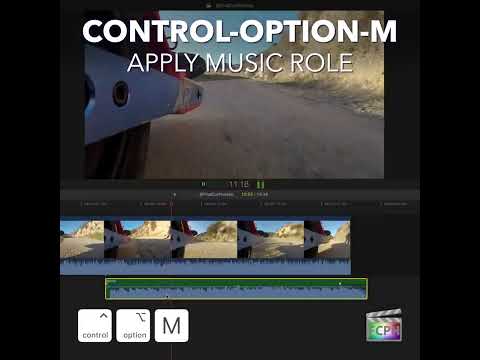
How to Use the Control-Option-M Shortcut to Apply the Music Role in Final Cut Pro
If you're working in Final Cut Pro and frequently handle audio in your projects, you know that managing and organizing audio clips can quickly become a…
-

How to Use the Control-Option-T Shortcut in Final Cut Pro to Apply Titles Role
If you're an editor working with Final Cut Pro , you know how important it is to keep your timeline organized, especially when dealing with large, complex…