How to Use the Control-Option-D Shortcut to Apply Dialogue Role in Final Cut Pro
Keyboard shortcut: ControlOptionD
Final Cut Pro is a powerful video editing tool used by professionals and hobbyists alike. One of its key features is the ability to organize and manage different types of audio within a project. If you're working with spoken content—whether for a film, documentary, or video project—it's essential to correctly label and organize your audio clips.
In this blog post, we'll show you how to use the Control-Option-D keyboard shortcut in Final Cut Pro to apply the Dialogue role to clips in your timeline. We'll also explain how this simple action can streamline your editing and audio mixing process.
What is the Control-Option-D Shortcut?
The Control-Option-D shortcut is used to apply the Dialogue role to a selected audio clip in your Final Cut Pro timeline. When you assign the Dialogue role to a clip, Final Cut Pro categorizes it as "Dialogue" audio, helping you organize and manage it more easily. This role specifically identifies clips that contain spoken words or dialogue, which is particularly useful in projects with a mix of different audio types.
Why Use Audio Roles in Final Cut Pro?
In Final Cut Pro, roles allow you to categorize your audio and video clips based on their content. For example, you can assign clips to roles like Dialogue, Music, or Effects. This helps you:
- Organize your timeline: When your clips are properly labeled, it’s easier to find and manage them.
- Efficiently adjust audio levels: You can adjust the volume of all dialogue clips at once or isolate specific tracks for more detailed adjustments.
- Speed up the editing process: With audio roles in place, you can quickly filter clips and focus on specific types of content, improving your workflow.

How to Use the Control-Option-D Shortcut
Here’s a step-by-step guide to applying the Dialogue role to your audio clips:
- Select the Clip: In the Final Cut Pro timeline, click on the audio clip you want to label as Dialogue.
- Apply the Dialogue Role: Press the Control-Option-D keyboard shortcut. This will assign the Dialogue role to the selected clip. The role will now be visible in the Timeline Index and in the Audio Inspector.
- Repeat for Other Clips: Continue to select and apply the Dialogue role to any other clips that contain spoken audio.
How Editors Use the Dialogue Role in Final Cut Pro
Once the Dialogue role is applied to your clips, there are several ways this feature can improve your editing process:
- Better Organization: With dialogue clips labeled properly, editors can easily filter and navigate the timeline. For example, they can choose to view only dialogue clips, leaving out background music or sound effects when making edits. This is especially useful in large projects with lots of clips.
- Isolating Dialogue for Mixing: Audio roles allow editors to isolate dialogue clips for finer control over the sound. During post-production, you may need to adjust the levels of dialogue separately from background music or sound effects. By using roles, you can quickly adjust the volume of all dialogue clips without affecting other elements in the mix.
- Using the Timeline Index: The Timeline Index is an incredibly useful feature when working with roles. Once you’ve assigned the Dialogue role to clips, you can filter and view only the clips with this role. This makes it easy to locate and edit dialogue, especially if your project has dozens or even hundreds of audio and video clips.
- Final Audio Mix: In the final stages of audio post-production, roles help streamline the mixing process. You can apply different audio effects (like EQ or compression) to the Dialogue role to enhance speech clarity without altering the background music or sound effects. This makes it much easier to create a balanced, professional audio mix.
Tips for Efficient Role Management
- Customize Roles: You can create custom roles in Final Cut Pro to suit your project’s needs. For example, you might create a “Voiceover” role if you're working with narrated content, or a “Foley” role for specific sound effects.
- Keyboard Shortcuts for Other Roles: In addition to Control-Option-D for dialogue, you can assign other roles to clips using keyboard shortcuts. For instance, Control-Option-M applies the Music role, and Control-Option-E applies the Effects role. Customizing your shortcuts can speed up your workflow.
- Adjust Roles in the Audio Inspector: If you need to change or modify a role after it's been applied, you can do so in the Audio Inspector by selecting the clip and editing its role assignment there.
Conclusion
Using the Control-Option-D shortcut in Final Cut Pro to apply the Dialogue role is a small but powerful way to improve your editing workflow. By organizing your audio clips into distinct categories, you can easily isolate and edit dialogue, adjust audio levels, and fine-tune your mix. Whether you're working on a short film, podcast, or YouTube video, managing your audio with roles is an essential step toward a smoother, more efficient editing process.




Related tutorials
-
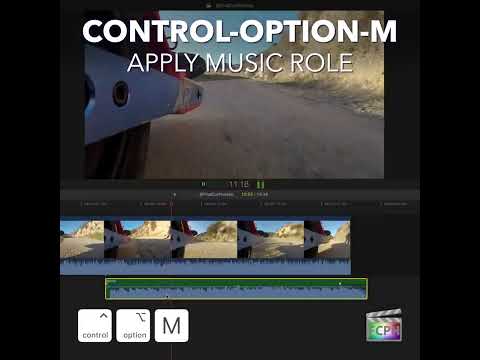
How to Use the Control-Option-M Shortcut to Apply the Music Role in Final Cut Pro
If you're working in Final Cut Pro and frequently handle audio in your projects, you know that managing and organizing audio clips can quickly become a…
-

How to Use the Control-Option-V Shortcut to Apply the Video Role in Final Cut Pro
Roles are labels that Final Cut Pro uses to organize your clips, control how they're colored in the timeline, and decide how they're grouped when you…
-

How to Use the Control-Option-T Shortcut in Final Cut Pro to Apply Titles Role
If you're an editor working with Final Cut Pro , you know how important it is to keep your timeline organized, especially when dealing with large, complex…