How to Use the Control-Option-M Shortcut to Apply the Music Role in Final Cut Pro
Keyboard shortcut: ControlOptionM
If you're working in Final Cut Pro and frequently handle audio in your projects, you know that managing and organizing audio clips can quickly become a challenge. Whether you're working with dialogue, sound effects, or background music, Final Cut Pro provides tools to help you stay organized and streamline your workflow. One such tool is the Roles feature, which allows you to categorize and manage different types of audio or video.
A key shortcut that many Final Cut Pro editors find useful is Control-Option-M, which applies the Music role to selected audio clips. In this post, we’ll break down how this shortcut works and how editors can use it to improve their editing efficiency.
What Does the Control-Option-M Shortcut Do?
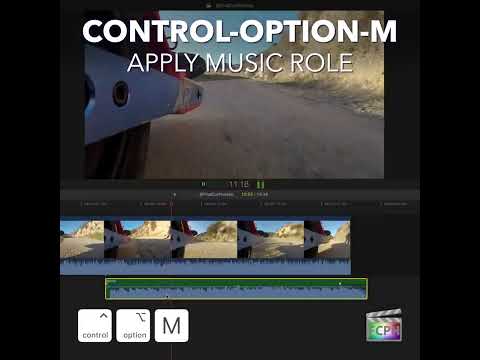
The Control-Option-M keyboard shortcut in Final Cut Pro is used to apply the Music role to an audio clip. In Final Cut Pro, Roles are used to categorize audio or video into specific types. For example, you can assign different roles to dialogue, music, sound effects, or any other custom audio/video types that you create.
When you use Control-Option-M, the selected audio clip is immediately labeled as Music, which makes it easier to identify, organize, and manage in your project. This categorization is particularly useful when you're working with complex timelines that include a mix of different audio tracks.
How Editors Can Use the Music Role in Final Cut Pro
The Music role is a powerful organizational tool, especially when you're working with multiple audio elements in your project. Here's how editors can take advantage of applying the Music role with the Control-Option-M shortcut:
1. Organize Your Timeline
When you’re editing a project with a mix of dialogue, sound effects, and music, it can be easy for your timeline to become cluttered. Applying the Music role to audio clips helps you clearly identify which clips are music, making it easier to manage your timeline. Instead of manually sorting through audio clips, you can quickly apply roles to group similar clips together.
2. Audio Mixing and Level Adjustments
One of the biggest benefits of assigning the Music role is that it simplifies your audio mixing process. With all your music clips categorized under one role, you can turn the Music role off in the Timeline Index to hear your mix without it, show audio lanes to group your music clips together in the timeline, and export the music as its own stem when you share.
3. Streamlined Exporting
When it comes time to export your project, the ability to filter and select roles is a game-changer. By assigning the Music role to background music, you can easily choose to export only the music tracks or adjust them separately in your final mix. This is especially useful when creating different versions of your project, such as one with a music-only mix or one with dialogue and effects muted.
4. Improved Efficiency
In fast-paced editing environments, efficiency is key. The Control-Option-M shortcut allows you to instantly apply the Music role to any selected audio clip. This saves you the time and effort of manually assigning roles through the Inspector, and ensures that your audio workflow is smooth and organized.
How to Use the Control-Option-M Shortcut
Using the Control-Option-M shortcut is simple. Here's how:
- Select the audio clip that you want to categorize as music in the timeline.
- Press Control-Option-M on your keyboard.
- The clip will now be labeled as "Music" in the Roles section of the Inspector, and you can start managing it as part of your music track group.
If you need to change the role later, you can always go back to the Inspector and manually adjust the role, but using the keyboard shortcut makes this process much faster.
Conclusion
The Control-Option-M shortcut is an incredibly useful tool for Final Cut Pro editors who work with audio. By applying the Music role to your background music clips, you can keep your project organized, streamline your audio mixing, and make the export process more efficient.
Whether you're working on a short film, a commercial, or a YouTube video, staying organized with roles is a key part of professional-level editing. By incorporating shortcuts like Control-Option-M into your workflow, you’ll be able to edit faster and more effectively, allowing you to focus on the creative aspects of your project.
Related Tips:
- Control-Option-D: Apply the Dialogue role.
- Control-Option-E: Apply the Effects role.
- Customize your roles and keyboard shortcuts for even faster editing.
Happy editing!




Related tutorials
-

How to Use the Control-Option-D Shortcut to Apply Dialogue Role in Final Cut Pro
Final Cut Pro is a powerful video editing tool used by professionals and hobbyists alike. One of its key features is the ability to organize and manage…
-

How to Use the Control-Option-V Shortcut to Apply the Video Role in Final Cut Pro
Roles are labels that Final Cut Pro uses to organize your clips, control how they're colored in the timeline, and decide how they're grouped when you…
-

How to Use the Control-Option-T Shortcut in Final Cut Pro to Apply Titles Role
If you're an editor working with Final Cut Pro , you know how important it is to keep your timeline organized, especially when dealing with large, complex…