How to Use the Control-Option-T Shortcut in Final Cut Pro to Apply Titles Role
Keyboard shortcut: ControlOptionT
If you're an editor working with Final Cut Pro, you know how important it is to keep your timeline organized, especially when dealing with large, complex projects. Whether you're adding titles, text, or other graphics, being able to quickly assign roles to your clips can significantly speed up your workflow.
One of the most useful shortcuts to streamline this process is Control-Option-T, which applies the Title role to a selected clip. But what exactly does that mean, and how can you use it to improve your editing process? Let's dive in!
What Does Control-Option-T Do?
When you press Control-Option-T in Final Cut Pro, you're telling the software to assign the Title role to the selected clip.
In Final Cut Pro, roles are a way to categorize and organize different types of media. Titles, text elements, and graphics fall under the Title role, which helps differentiate them from other media types like video, audio, or effects.
This simple shortcut makes it easy to quickly mark clips as titles without needing to manually change metadata settings. Whether you're working with text overlays, lower thirds, or full-screen title cards, Control-Option-T ensures that all of your text-based clips are categorized properly.

How Can Editors Use the Control-Option-T Shortcut?
Here are some ways Control-Option-T can be a game-changer for editors working with Final Cut Pro:
1. Add Titles to the Timeline Faster
When you add text elements or titles to your project, it’s important to give them a proper role so you can manage them efficiently. By selecting your title clip and pressing Control-Option-T, you can instantly apply the Title role to the clip, allowing Final Cut Pro to treat it differently from other clips. This speeds up the process, especially when working with multiple titles across a large timeline.
2. Organize Your Clips with Roles
As your project grows in complexity, the ability to organize your clips by roles becomes invaluable. Titles, text elements, and graphics can quickly clutter up your timeline, making it difficult to locate specific pieces of content.
By applying the Title role to all text-based clips using Control-Option-T, you can leverage Final Cut Pro's role-based organization tools, like the Roles pane of the Timeline Index. There you can highlight or turn off every clip with the Titles role at once, which is incredibly useful when you need to focus on specific parts of your project, such as just the titles or all the video clips.
3. Simplify Multilingual or Versioned Projects
If you’re working on a project with multiple versions or in different languages, applying roles can simplify the process of managing title text. For example, if you need to switch out text for different language versions, having all your titles grouped under the Title role makes it easy to find and replace the text without affecting other media.
4. Ensure Consistency Across Your Project
Using roles consistently ensures that your project stays organized and your titles are treated as distinct from other media types. This helps maintain clarity and consistency, both when editing the project and when collaborating with others, especially if you’re working in a team.
Why Should Editors Use Control-Option-T?
- Saves Time: Instead of manually applying roles to each title clip, the Control-Option-T shortcut allows editors to do it in a single step. This is especially helpful for editors working on tight deadlines or managing large projects.
- Improves Workflow: Quickly categorizing titles helps you keep track of your media and prevents clutter. It allows you to focus on what’s important and find your clips more easily.
- Enhances Flexibility: The role system in Final Cut Pro is flexible and powerful, giving you better control over your timeline and media management.
Conclusion
The Control-Option-T shortcut is a small but powerful tool in Final Cut Pro that allows you to quickly apply the Title role to any selected clip. This helps keep your project organized, improves your editing workflow, and makes it easier to manage different types of content, especially titles and text-based clips.
So next time you're working with titles in Final Cut Pro, remember: Control-Option-T is the shortcut you need to apply that Title role and make your editing process faster and more efficient. Happy editing!





Related tutorials
-

How to Use the Control-Option-D Shortcut to Apply Dialogue Role in Final Cut Pro
Final Cut Pro is a powerful video editing tool used by professionals and hobbyists alike. One of its key features is the ability to organize and manage…
-
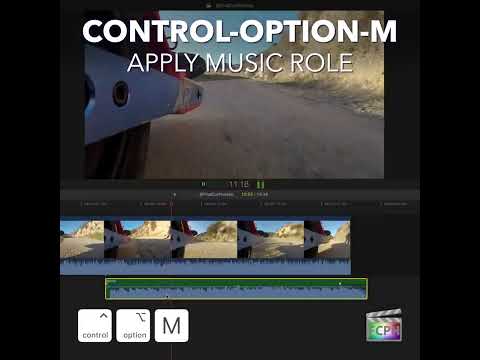
How to Use the Control-Option-M Shortcut to Apply the Music Role in Final Cut Pro
If you're working in Final Cut Pro and frequently handle audio in your projects, you know that managing and organizing audio clips can quickly become a…
-

How to Use the Control-Option-V Shortcut to Apply the Video Role in Final Cut Pro
Roles are labels that Final Cut Pro uses to organize your clips, control how they're colored in the timeline, and decide how they're grouped when you…