Final Cut Pro Keyboard Shortcut: Overwrite to Primary Storyline (Option-Command-Down Arrow)
Keyboard shortcut: OptionCommandDown Arrow

Connected clips are great for B-roll and cutaways, but sometimes a shot really belongs in your main edit. Option-Command-Down Arrow moves it there without changing the timing of everything else.
What It Does
Option-Command-Down Arrow runs Overwrite to Primary Storyline. It takes the selected connected clip and overwrites it into the primary storyline, replacing the section of the primary storyline beneath it. Because it's an overwrite rather than an insert, nothing later in your project shifts, and your project's duration stays the same.
How to Use It
- In the Timeline, select a connected clip (or connected storyline) sitting above or below the primary storyline.
- Press Option-Command-Down Arrow.
- The clip drops into the primary storyline and replaces whatever was underneath it for its duration.
- Play through the area to check the result.
When to Use It
- Promoting B-roll: A cutaway that started as a connected clip can become a regular part of your main edit.
- Simplifying a timeline: Bring connected clips down into the primary storyline so you have fewer layers to manage.
Things to Keep in Mind
- Overwriting replaces what was in the primary storyline under the clip. If that section contained interview audio you wanted to keep, it's gone from that spot, so listen before and after.
- Its opposite is Option-Command-Up Arrow (Lift from Storyline), which pulls a clip out of the storyline and connects it above, leaving a gap.
- Made the wrong move? Command-Z undoes it instantly.
Used together, these two shortcuts let you move shots between your main edit and connected layers without breaking your timing.



Related tutorials
-

Option-Down Arrow in Final Cut Pro: Move the Selection Down
In Final Cut Pro's default command set, Option-Down Arrow is the Move Down command. Apple describes it simply: it moves the selection down by one unit. It…
-

How to Use the Control-Option-Command-Right Arrow Shortcut in Final Cut Pro for 360° Video Editing
If you're working with 360-degree video in Final Cut Pro , one of the most helpful tools at your disposal is the ability to quickly navigate your footage…
-
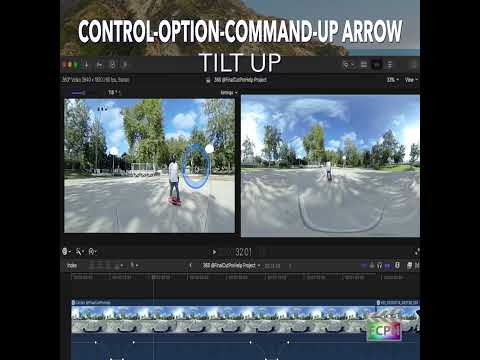
Mastering the Control-Option-Command-Up Arrow Shortcut for 360° Video Editing in Final Cut Pro
Final Cut Pro is one of the most powerful video editing tools available, offering a vast array of features for editors working with both standard and…