Option-Down Arrow in Final Cut Pro: Move the Selection Down
Keyboard shortcut: OptionDown Arrow

In Final Cut Pro's default command set, Option-Down Arrow is the Move Down command. Apple describes it simply: it moves the selection down by one unit. It is not a playhead or navigation command, and it doesn't jump between "tracks" (Final Cut Pro's magnetic timeline doesn't use tracks).
What It Does
Move Down acts on whatever is currently selected. Each press moves that selection down by one unit, in small, controlled steps, so you can make precise adjustments without dragging with the mouse. It's one of a family of "move" and "nudge" commands that let you reposition things from the keyboard.
How to Use It
- Select the item you want to move.
- Press Option-Down Arrow. The selection moves down by one unit.
- Press it again to keep moving in small steps.
- If you go too far, press Command-Z to undo the last move.
If nothing happens, the current selection is not something Move Down can act on, so try selecting a different item.
Finding It and Its Partners
To see exactly where Move Down lives and which related commands sit beside it, open the Command Editor with Option-Command-K and search for "Move Down." You'll also find its partner, Move Up, along with the nudge commands, and you can check or change their keys there.
Tips
- For moving clips earlier or later in time, use the nudge keys instead: Comma nudges left and Period nudges right.
- To change which clip is selected in a stack, use Command-Up Arrow and Command-Down Arrow (Select Above and Select Below).
Option-Down Arrow is a niche command, but when you need small, repeatable moves from the keyboard, it's handy to know.



Related tutorials
-
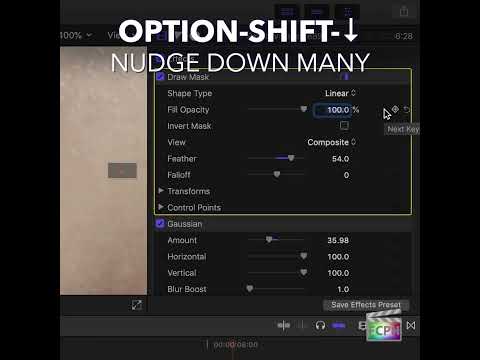
Mastering the Option-Shift-Down Arrow Shortcut in Final Cut Pro: Move Down by 10
Small, precise moves are a big part of polishing an edit. Sometimes, though, a tiny nudge is too small and you need to move something farther without…
-

Using the Option-Up Arrow Shortcut in Final Cut Pro to Move a Selection Up
Option-Up Arrow runs the Final Cut Pro command Move Up . Final Cut Pro describes it in one line: it moves the selection up by one unit. It's a precise…
-

How to Use the Control-Option-Down Arrow Shortcut to Decrease Waveform Size in Final Cut Pro
When you're working with audio in Final Cut Pro , it’s essential to have the right tools to manage both video and audio elements efficiently. One helpful…