Streamlining Multicam Edits in Final Cut Pro with the Cut & Switch to Viewer Angle 6 Shortcut
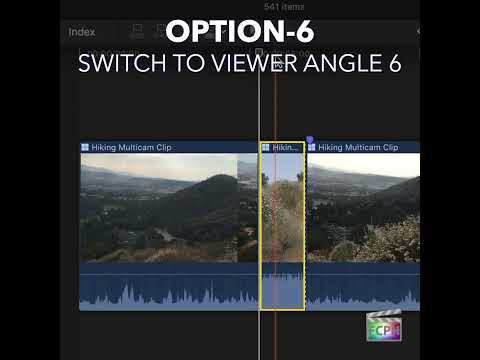
When working with Final Cut Pro and multiple camera angles, editing becomes much more efficient when you can quickly switch between different footage views. For editors working on multicam projects, Final Cut Pro offers a variety of time-saving keyboard shortcuts. One particularly useful shortcut is the Cut & Switch to Viewer Angle 6. Let’s dive into what this shortcut does and how it can help you streamline your editing process.
What Does the Cut & Switch to Viewer Angle 6 Shortcut Do?
In Final Cut Pro, the Cut & Switch to Viewer Angle 6 command serves two primary functions:
1. Cuts the Clip: It makes a cut (or split) at the current position of the playhead in your timeline. This means the clip will be divided into two parts at that exact point.
2. Switches to Viewer Angle 6: If you’re working with a multicam clip (which contains footage from multiple cameras), this shortcut will immediately switch the Viewer window to display the footage from Angle 6 (the sixth camera angle in the multicam setup).
The Viewer is the window in Final Cut Pro where you preview your clips and edits. By using this shortcut, you’re able to both cut the clip at the playhead and instantly view a different camera angle without manually navigating to it.
Why Is This Shortcut Useful for Editors?
Editing a multicam project can quickly become complex, especially when working with multiple angles of the same scene. The Cut & Switch to Viewer Angle 6 shortcut helps editors stay in a smooth workflow by:
1. Quick Cuts and Edits: As you play through a multicam clip, the shortcut allows you to cut a clip at the current playhead position, which is useful for creating clean transitions or focusing on specific parts of a scene.
2. Effortless Angle Switching: With the shortcut, you can easily switch between angles without needing to manually select the Viewer angle from the interface. This speeds up the process of reviewing different camera shots, allowing you to make faster creative decisions.
3. Efficiency in Multicam Editing: Multicam editing can be time-consuming if you’re constantly switching between clips and angles. By using the Cut & Switch to Viewer Angle 6 shortcut, you can jump to the sixth camera angle and make adjustments with a single keystroke, improving your overall efficiency.
How Editors Can Use This Shortcut in Practice
In a typical multicam editing workflow, you’ll have footage from multiple cameras captured during the same event or scene. The ability to quickly switch between these camera angles is crucial for selecting the best shot and creating a polished final edit. Here’s how you might use this shortcut:
• Fast Angle Review: When editing, you might need to review the footage from Angle 6 of your multicam setup. Instead of manually selecting it from the angle selector, pressing the keyboard shortcut will instantly bring that angle to the Viewer, allowing you to focus on the specific shot you’re working with.
• Efficient Multicam Cuts: As you’re cutting through a multicam timeline, you may want to make cuts at specific points but also quickly switch to a particular angle to see how the action is captured. The shortcut helps you cut at the playhead’s position and immediately jump to Angle 6 to inspect the footage in that camera angle.
• Speeding Up Your Workflow: If you have more than six camera angles in your project, this shortcut allows you to rapidly cycle through all your angles. As you make cuts and adjustments, you can navigate between different angles of the same scene, ensuring you don’t miss any important moments.
How to Use the Cut & Switch to Viewer Angle 6 Shortcut
The default keyboard shortcut for this action in Final Cut Pro is:
• Command + 6 (on a Mac keyboard)
To use it:
1. Place the playhead at the point in the timeline where you want to make the cut.
2. Press Command + 6 to cut the clip at that position and switch the Viewer to Angle 6 (or the sixth angle in your multicam clip).
Conclusion: Mastering Multicam Edits with Final Cut Pro
The Cut & Switch to Viewer Angle 6 shortcut is a game-changer for editors working with multicam footage. It allows you to quickly cut your clips and instantly view a different camera angle, all with a single keystroke. By incorporating this shortcut into your workflow, you can significantly speed up your editing process and improve your efficiency when switching between angles. Whether you’re working on interviews, live events, or any other multicam production, mastering this shortcut can take your editing skills to the next level.


Related tutorials
-

Streamline Your Multi-Camera Edits with the "Cut & Switch to Viewer Angle 1" Shortcut in Final Cut Pro
When working with multi-camera projects in Final Cut Pro , efficiency is key. The ability to quickly switch between different camera angles while making…
-
Final Cut Pro Shortcut | Option-5 | Switch to Multicam Angle 5
If you're an editor working with multicam clips in Final Cut Pro , you know how important it is to have quick access to various camera angles while you…
-

Mastering the "Cut & Switch to Viewer Angle 9" Shortcut in Final Cut Pro
If you're an editor working with multi-camera footage in Final Cut Pro , you know how crucial it is to be able to quickly switch between angles and make…