Mastering the "Cut & Switch to Viewer Angle 9" Shortcut in Final Cut Pro
Keyboard shortcut: 9
If you're an editor working with multi-camera footage in Final Cut Pro, you know how crucial it is to be able to quickly switch between angles and make edits efficiently. One of the most useful keyboard shortcuts in this context is the "Cut & Switch to Viewer Angle 9" shortcut. In this blog post, we'll dive into what this shortcut does, how it can streamline your editing workflow, and how editors can take full advantage of it when working with multi-camera sequences.
What is the "Cut & Switch to Viewer Angle 9" Shortcut?
At its core, the "Cut & Switch to Viewer Angle 9" keyboard shortcut combines two powerful actions in Final Cut Pro's multi-camera editing mode:
- Cut: The first part of the shortcut makes a cut at the current playhead position in the timeline. This action applies an edit, replacing the current clip with a cut from one of the active camera angles in your multi-camera sequence.
- Switch to Viewer Angle 9: The second part of the shortcut switches the Viewer to the 9th camera angle in your multi-camera clip (if available). Final Cut Pro allows you to sync footage from multiple cameras (typically used for live events or performances), and each camera angle is assigned a number. The "9" refers to the specific angle you're jumping to within the multi-camera setup.
So, when you press this keyboard shortcut, it not only cuts the footage at the playhead but also switches to the 9th camera angle in your viewer window.

How Editors Use It
In multi-camera editing, you’re often working with several different angles of the same scene—whether it's a concert, an interview, or a live event. The ability to quickly jump between these angles while making cuts can make your workflow much more efficient.
Here’s how editors typically use this shortcut in practice:
- Syncing Camera Angles: When you're working with a multi-camera sequence, Final Cut Pro automatically syncs your footage from different cameras based on timecode, audio, or markers. Once synced, these different angles are available to you in the multi-camera viewer.
- Switching Between Angles: While editing, you’ll often want to switch between camera angles to choose the best shot. You can manually click to select a new angle in the viewer, but the "Cut & Switch to Viewer Angle 9" shortcut lets you do this instantly. Pressing 9 adds a cut at the playhead and switches the multicam clip to angle 9 of the current bank, all in one keystroke.
- Making Edits On The Fly: As you scrub through the timeline or play back your sequence, you may decide that you want to cut to a specific camera angle. Pressing the "Cut & Switch to Viewer Angle 9" shortcut will both make the cut at the playhead position and jump you to that camera angle in the viewer. This makes editing more fluid and minimizes the need to manually drag clips or fiddle with the viewer controls.
Why This Shortcut is a Game-Changer for Multi-Camera Editing
- Speed: This shortcut saves you time by cutting and switching to the correct angle in one simple action. Editors working on large, complex projects—like live events or performances—can move quickly and make fast decisions about which shots to use.
- Efficiency: By reducing the number of steps to perform an edit, the "Cut & Switch" shortcut helps maintain the flow of the editing process. You don’t have to manually select an angle or worry about repositioning clips—Final Cut Pro does the heavy lifting for you.
- Precision: Since you’re able to jump to a specific camera angle and cut directly to it, you can maintain a high level of control over your edits. This is especially important when you're working with a lot of angles and need to ensure smooth transitions between shots.
Example Use Case: Editing a Live Concert Video
Let’s say you're editing a live concert video with 12 cameras covering different angles of the performance. You’ve already synced the footage in Final Cut Pro, and now you're ready to cut between angles as you view the performance.
- As the playhead moves through the timeline, you notice an exciting moment happening on Camera 9. Instead of manually navigating through all your footage, you press 9 right at that moment.
- That single keystroke is the "Cut & Switch to Viewer Angle 9" command: Final Cut Pro adds a cut at the playhead and switches the new section to angle 9 of the current bank. There's no separate step.
This allows you to make real-time, efficient edits, ensuring the concert footage flows seamlessly without disrupting the pace of the editing process.
Customizing Your Workflow
The number keys refer to angle positions in the current bank shown in the Angle Viewer, so 9 cuts to the ninth angle of the bank you're viewing. With more than nine cameras, set the Angle Viewer to show 16 angles or switch banks to reach the rest. If you'd like this command on a different key, you can reassign it in the Command Editor (Option-Command-K).
Conclusion
The "Cut & Switch to Viewer Angle 9" keyboard shortcut is a simple but powerful tool in Final Cut Pro that can help you speed up your multi-camera editing workflow. By cutting to the desired angle and switching to the corresponding viewer shot with a single keystroke, editors can stay focused on the creative process without interrupting their flow. Whether you're working on live events, performances, or interviews, this shortcut will help you make quick, precise edits, keeping your timeline moving smoothly.
So, the next time you're editing a multi-camera project in Final Cut Pro, don’t forget about the "Cut & Switch to Viewer Angle 9" shortcut—it’s sure to make your editing process faster and more efficient!


Related tutorials
-

Mastering Multi-Camera Editing in Final Cut Pro: Using the 8 Shortcut to Cut & Switch to Viewer Angle 8
Final Cut Pro offers a powerful and intuitive editing environment for video professionals, especially when working with multi-camera setups. One of the…
-

Streamline Your Multi-Camera Edits with the "Cut & Switch to Viewer Angle 1" Shortcut in Final Cut Pro
When working with multi-camera projects in Final Cut Pro , efficiency is key. The ability to quickly switch between different camera angles while making…
-
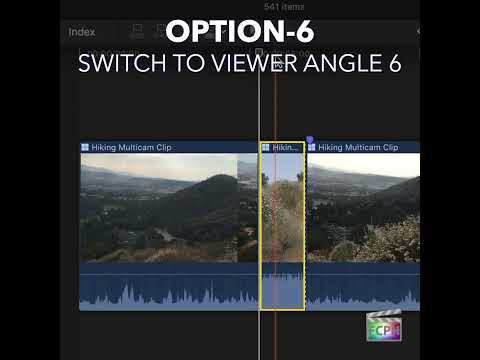
Streamlining Multicam Edits in Final Cut Pro with the Cut & Switch to Viewer Angle 6 Shortcut
When working with Final Cut Pro and multiple camera angles, editing becomes much more efficient when you can quickly switch between different footage…