Streamline Your Multi-Camera Edits with the "Cut & Switch to Viewer Angle 1" Shortcut in Final Cut Pro
When working with multi-camera projects in Final Cut Pro, efficiency is key. The ability to quickly switch between different camera angles while making cuts can save you a significant amount of time during the editing process. One of the most useful keyboard shortcuts for this purpose is the "Cut & Switch to Viewer Angle 1" command.
In this post, we'll dive into what this shortcut does and how editors can leverage it to speed up their workflow in Final Cut Pro.
What Does the "Cut & Switch to Viewer Angle 1" Shortcut Do?
At its core, the Cut & Switch to Viewer Angle 1 shortcut is a combination of two actions:
- Cut: It trims the video at the playhead's current position, creating a split in the footage.
- Switch to Viewer Angle 1: After the cut, Final Cut Pro automatically switches the viewer to show the footage from Angle 1 of a multi-camera clip.
In multi-camera editing, you’re often working with footage from multiple cameras shooting the same scene. This shortcut makes it easy to perform a cut and immediately switch to the first angle in your multi-camera setup, all in one seamless action.

How Editors Use the "Cut & Switch to Viewer Angle 1" Shortcut
When you're editing a multi-camera sequence, being able to quickly switch between different camera angles is essential for creating a polished final product. Here's how editors typically use this shortcut during their editing workflow:
1. Setting Up Your Multi-Camera Clip
Before using this shortcut, you need to set up a multi-camera clip in Final Cut Pro. This is where you sync multiple camera angles of the same scene together. Once you've synchronized the clips (either manually or automatically), they become part of a multi-camera clip, which allows you to easily switch between angles during the editing process.
2. Making Cuts and Switching Angles
As you edit your multi-camera project, you’ll play through the footage and make cuts at specific points. With the "Cut & Switch to Viewer Angle 1" shortcut, you can quickly make a cut at the playhead's current position and then switch the viewer to display Angle 1 from your multi-camera clip. This eliminates the need to manually click through each angle or scrub through your timeline to find the right shot.
For example, if you’re editing a concert video with multiple camera angles, you might want to cut to a new angle during an exciting moment. By pressing this shortcut, you cut the video at the current playhead position and immediately jump to the first camera angle, making it easier to see exactly what you're working with.
3. Refining Your Edits
As you continue working, you can use similar shortcuts to switch between other angles (e.g., Angle 2, Angle 3, etc.) at different cut points. This helps you maintain a smooth editing flow as you refine your timeline, selecting the best angle for each moment without wasting time navigating through the timeline or viewer manually.
4. Finalizing the Sequence
Once you’ve made all your cuts and chosen the best angles, you can fine-tune your multi-camera edit to perfection. The ability to switch angles quickly and efficiently makes it easier to experiment with different shot selections and transitions, ultimately leading to a more dynamic and polished final product.
Why Is This Shortcut So Useful?
Multi-camera editing can be a tedious process, especially when you're juggling several camera angles at once. The "Cut & Switch to Viewer Angle 1" shortcut streamlines this process by combining two essential actions (cutting and switching angles) into a single keyboard command. Here’s why it’s so valuable:
- Saves Time: Instead of manually cutting the footage and then selecting the right angle, you can do both with a single keystroke.
- Improves Workflow: The shortcut enables faster decision-making as you can quickly view and select the right angle after each cut.
- Reduces Distractions: By automating the process of switching between angles, you can focus more on the creative aspects of editing rather than the technical steps.
Conclusion
The "Cut & Switch to Viewer Angle 1" shortcut is a game-changer for editors working on multi-camera projects in Final Cut Pro. It helps speed up the editing process by allowing you to quickly cut and switch between different camera angles, improving both your efficiency and workflow. Whether you're editing a live event, interview, or any multi-camera production, this shortcut is a must-know tool for any Final Cut Pro user.
Start incorporating this keyboard shortcut into your multi-camera editing routine, and you’ll be amazed at how much faster and smoother your editing sessions become!


Related tutorials
-

Mastering Multi-Camera Editing in Final Cut Pro: Using the 8 Shortcut to Cut & Switch to Viewer Angle 8
Final Cut Pro offers a powerful and intuitive editing environment for video professionals, especially when working with multi-camera setups. One of the…
-

How to Cut & Switch to Viewer Angle 5 in Final Cut Pro: A Guide for Multi-Camera Editing
When working on a multi-camera project in Final Cut Pro , the ability to quickly cut and switch between different camera angles is crucial for maintaining…
-
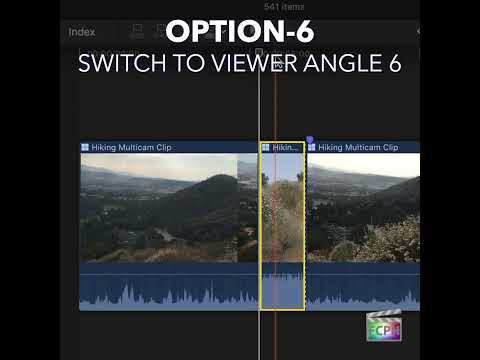
Streamlining Multicam Edits in Final Cut Pro with the Cut & Switch to Viewer Angle 6 Shortcut
When working with Final Cut Pro and multiple camera angles, editing becomes much more efficient when you can quickly switch between different footage…