How to Cut & Switch to Viewer Angle 5 in Final Cut Pro: A Guide for Multi-Camera Editing
When working on a multi-camera project in Final Cut Pro, the ability to quickly cut and switch between different camera angles is crucial for maintaining a smooth editing workflow. One powerful keyboard shortcut that Final Cut Pro offers is the ability to cut a clip and switch to Viewer Angle 5 in one action. In this post, we’ll break down what this shortcut does and how editors can use it to speed up their editing process.
What Does the Cut & Switch to Viewer Angle 5 Shortcut Do?
This keyboard shortcut in Final Cut Pro is a time-saver for editors working with multi-camera clips. Here’s what happens when you use it:
1. Cut the Clip at the Playhead:
The shortcut cuts the current clip at the playhead position, which is the point where your timeline indicator is located. This essentially splits the clip into two parts, allowing you to edit and trim as needed.
2. Switch to Viewer Angle 5:
If you’re working with a multi-camera sequence, this shortcut will switch the Viewer (the main window displaying your video) to show the footage from Angle 5 of the multi-camera clip. This is especially useful when you’re editing a project with multiple camera angles and want to switch to a specific one quickly.

How Editors Use This in a Multi-Camera Workflow
In a multi-camera editing project, an editor may have footage from several cameras capturing the same scene. Final Cut Pro allows editors to sync all the angles into a multi-camera clip, making it easy to switch between them while editing. Here’s how the Cut & Switch to Viewer Angle 5 shortcut can be useful in this workflow:
1. Real-Time Switching:
During the editing process, an editor might want to cut to a specific camera angle in the timeline while also changing the viewer to show that angle. Instead of manually selecting the angle in the timeline or using on-screen controls, this keyboard shortcut makes it quick and efficient to do both at once. In this case, Viewer Angle 5 will instantly display the fifth camera angle of your multi-camera clip.
2. Streamlined Editing:
By cutting the clip and switching angles in a single action, editors can keep the editing flow moving. If you’re deciding which camera angle to use for a particular moment, this shortcut helps you instantly preview and cut to the angle you need. This is especially important in fast-paced editing scenarios, such as live events or interviews.
3. Efficient Multi-Camera Editing:
For projects with multiple cameras, you might have dozens of angles to choose from. Using keyboard shortcuts to quickly jump between angles allows editors to stay focused on the creative aspect of the edit rather than getting bogged down by technical tasks. The shortcut to switch to Viewer Angle 5 is just one of many designed to improve your efficiency in a multi-camera environment.
Customizing Keyboard Shortcuts
Final Cut Pro offers a highly customizable keyboard layout, so you can tailor shortcuts to fit your editing style. The default setup includes shortcuts for switching between viewer angles, but if needed, you can assign or change the key combination in the app’s preferences.
To customize your keyboard shortcuts:
1. Go to Final Cut Pro > Commands > Customize.
2. Find the action you want to modify (in this case, “Cut and Switch to Viewer Angle 5”).
3. Assign a new key combination that works best for you.
This customization can make your editing workflow even more personalized and efficient.
Conclusion: Speeding Up Your Multi-Camera Editing Process
The Cut & Switch to Viewer Angle 5 keyboard shortcut is a powerful tool for editors working with multi-camera projects in Final Cut Pro. It allows you to cut clips at the playhead and instantly switch to a specific camera angle, making your editing process faster and more efficient. By mastering this shortcut (and others like it), you can cut down on time spent navigating menus and controls, and focus more on the creative aspects of your project.
Whether you’re editing a film, a live event, or a YouTube video with multiple angles, incorporating keyboard shortcuts into your Final Cut Pro workflow will save you time and help you stay organized. Happy editing!


Related tutorials
-

Mastering Multi-Camera Editing in Final Cut Pro: Using the 8 Shortcut to Cut & Switch to Viewer Angle 8
Final Cut Pro offers a powerful and intuitive editing environment for video professionals, especially when working with multi-camera setups. One of the…
-

Streamline Your Multi-Camera Edits with the "Cut & Switch to Viewer Angle 1" Shortcut in Final Cut Pro
When working with multi-camera projects in Final Cut Pro , efficiency is key. The ability to quickly switch between different camera angles while making…
-
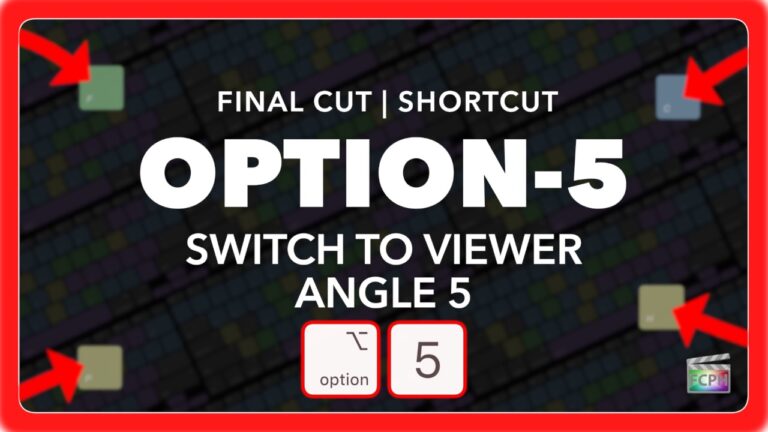
Final Cut Pro Shortcut | Option-5 | Switch to Multicam Angle 5
If you're an editor working with multicam clips in Final Cut Pro , you know how important it is to have quick access to various camera angles while you…