Speed Up Your Final Cut Pro Editing with the Control-Command-Right Arrow Shortcut
Keyboard shortcut: ControlCommandRight Arrow
When editing in Final Cut Pro, every second counts. Whether you're trimming clips, applying effects, or adjusting a sequence, efficiency is key. One handy keyboard shortcut that can help you work faster and more fluidly is Control-Command-Right Arrow. But what exactly does it do, and how can you use it to streamline your editing process?
Let’s break it down!
What Does the Control-Command-Right Arrow Shortcut Do?
The Control-Command-Right Arrow keyboard shortcut in Final Cut Pro is used to extend your current selection to the next clip on the timeline. Instead of manually clicking and dragging to select adjacent clips, this shortcut moves the playhead forward and adds the next topmost clip in the same role to your selection.
This is especially useful for editors who want to work with multiple clips at once, whether for trimming, applying effects, or adjusting the timing of a sequence. By extending your selection, you can perform batch edits on several clips with just a few keystrokes.

How Can Editors Use This Shortcut in Their Workflow?
- Select Clips for Editing
When editing a project, you often need to make adjustments to more than one clip at a time. By using Control-Command-Right Arrow, you can extend your selection from a single clip to include the next adjacent clip on the timeline. This eliminates the need to manually click and drag to select multiple clips, saving you time and effort. - Trim or Move Clips Quickly
If you're trimming clips or moving elements around in your timeline, the ability to extend your selection quickly is a huge time-saver. For example, you might start by selecting one clip, and then press Control-Command-Right Arrow to select the next clip, so you can move, copy, or delete both clips at once. - Apply Effects to Multiple Clips
If you want to apply the same effect or adjustment to a series of adjacent clips, the Control-Command-Right Arrow shortcut allows you to select them all with a simple keystroke. Instead of selecting each clip individually or dragging the mouse over them, this shortcut lets you extend your selection and apply the effect to all selected clips in one go. - Work More Efficiently
One of the biggest benefits of this shortcut is that it lets you keep your hands on the keyboard, minimizing the need for mouse-based navigation. For editors working on complex projects with many clips, this shortcut helps reduce distractions and allows you to stay in the flow of editing.
Example Workflow:
Let’s say you’re editing a fast-paced video sequence with several clips in a row. You’re working on trimming and adjusting the timing of the clips.
- Step 1: Place your playhead over the first clip you want to adjust.
- Step 2: Select that clip.
- Step 3: Use Control-Command-Right Arrow to extend the selection to the next clip on the timeline.
- Step 4: Now, both clips are selected, and you can apply the same edit (like moving, resizing, or applying an effect) to both clips simultaneously.
This workflow is not only faster but also allows for more precise editing without the need for constantly switching between the keyboard and the mouse.
Why You Should Add This Shortcut to Your Editing Arsenal
Whether you're a professional editor or just getting started with Final Cut Pro, using keyboard shortcuts is one of the best ways to improve your efficiency. The Control-Command-Right Arrow shortcut helps you:
- Save time by quickly selecting adjacent clips without needing to manually drag across the timeline.
- Stay focused by minimizing the need for mouse interactions.
- Edit in bulk, allowing you to apply changes to multiple clips at once, instead of making individual adjustments.
By incorporating this shortcut into your editing routine, you'll be able to make quicker, more fluid decisions, and spend less time on repetitive tasks.
Conclusion
Final Cut Pro is packed with powerful tools, but it’s the little shortcuts that can really make a difference in your editing speed and efficiency. The Control-Command-Right Arrow keyboard shortcut is a great example of how you can optimize your workflow by extending your selection to the next clip quickly and easily.
Next time you’re editing, try it out! You’ll be surprised how much faster and smoother your process becomes.
By keeping this shortcut in mind, you'll be well on your way to editing like a pro!



Related tutorials
-

How to Use the Control-Option-Command-Right Arrow Shortcut in Final Cut Pro for 360° Video Editing
If you're working with 360-degree video in Final Cut Pro , one of the most helpful tools at your disposal is the ability to quickly navigate your footage…
-
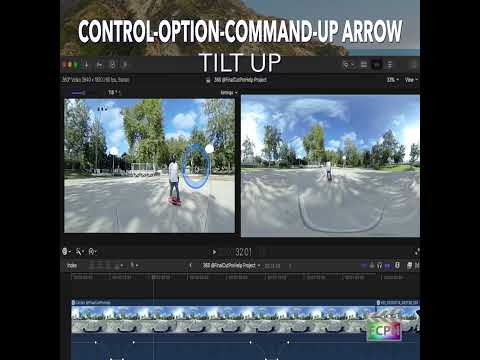
Mastering the Control-Option-Command-Up Arrow Shortcut for 360° Video Editing in Final Cut Pro
Final Cut Pro is one of the most powerful video editing tools available, offering a vast array of features for editors working with both standard and…
-

How to Use the Shift-Command-Right Arrow Keyboard Shortcut in Final Cut Pro for Multi-Camera Editing
When it comes to editing footage shot with multiple cameras, efficiency is key. Editors often need to switch between different camera angles quickly to…