Mastering the Up Arrow Shortcut in Final Cut Pro for Efficient Editing
Keyboard shortcut: Up Arrow
If you’re an editor working in Final Cut Pro, you know that time is precious. The more efficient you can be while navigating your project, the better. One often-overlooked tool that can save you a ton of time is the Up Arrow keyboard shortcut. In this post, we’ll dive into what the Up Arrow does in Final Cut Pro and how editors can use it to streamline their workflow.
What Does the Up Arrow Do in Final Cut Pro?
In Final Cut Pro, the Up Arrow keyboard shortcut is used to move the playhead to the previous edit point or clip boundary on your timeline. This means that pressing the Up Arrow will instantly move the playhead to the previous edit point, where one clip ends and the next begins. In the Browser, the Up Arrow selects the previous item instead.
This is incredibly useful when you’re navigating a complex timeline with multiple clips, transitions, and effects. Instead of manually scrubbing back through the timeline, you can use the Up Arrow to jump directly to the previous edit point in an instant.

Why Should Editors Use the Up Arrow in Their Workflow?
As an editor, you’re constantly moving between different sections of your timeline to refine your cuts, adjust transitions, and check the flow of your project. The Up Arrow makes this process faster and more efficient. Here are a few specific ways it can help:
1. Navigate Between Clips Quickly
When you’re working with multiple clips in the timeline, the Up Arrow helps you move quickly between them. Pressing the shortcut jumps the playhead back to the previous clip’s boundary. This is great when you want to review the cuts you’ve made or when you need to adjust a transition or effect.
2. Refine Your Edits
Sometimes you might want to fine-tune the transitions between clips or check how an edit flows. Pressing the Up Arrow allows you to instantly jump back to the previous edit point, which saves you from having to manually scrub through your timeline to find the right spot.
3. Improve Efficiency and Speed
The Up Arrow is a small but powerful tool in your editing arsenal. Using it regularly while navigating through your timeline can make your workflow more efficient. Instead of manually dragging the playhead or relying on more complex commands, pressing the Up Arrow will jump you back to key moments in your project, allowing you to focus on the creative side of editing rather than navigating your timeline.
4. Stay in the Flow of Editing
If you’re working quickly and want to stay in the flow, the Up Arrow provides a seamless way to move backward through your project without interruption. It’s less disruptive than using a mouse or trackpad, which can break your focus and slow you down.
How to Use the Up Arrow in Final Cut Pro
Here’s how you can start using the Up Arrow in your editing workflow:
- Select Your Timeline: Make sure your timeline is active. This is where your playhead will move.
- Press the Up Arrow: Hit the Up Arrow key on your keyboard. Your playhead will jump to the previous edit point in your timeline, whether it’s the start of the previous clip or a cut point you made earlier.
- Refine Your Edits: Once you’ve jumped back to the previous edit point, you can make adjustments to the clip, add transitions, or change your edit.
Example: Refining a Transition Between Clips
Imagine you're working on a project with a fast-paced series of cuts. You’ve just made a cut between two clips, but you want to make sure the transition feels smooth. Here’s how you can use the Up Arrow:
- As you play through your timeline, you notice that the transition between two clips feels a little abrupt.
- Press the Up Arrow to jump back to the beginning of the previous clip, where you made the cut.
- From here, you can either adjust the transition, change the clip’s timing, or add an effect to smooth it out.
By using the Up Arrow shortcut, you save time and avoid interrupting your editing flow with unnecessary mouse clicks or scrubbing.
Conclusion
The Up Arrow in Final Cut Pro is a simple but powerful shortcut that can significantly improve your editing efficiency. Whether you’re navigating through clips, refining edits, or checking transitions, this shortcut helps you get where you need to be quickly and without interruption.
Start incorporating the Up Arrow into your workflow today to edit faster and more efficiently. Once you get the hang of it, you'll wonder how you ever edited without it!


Related tutorials
-
How to Use the Shift-Up Arrow in Final Cut Pro for Efficient Selection
When you're editing in Final Cut Pro , efficiency is key. One of the lesser-talked about but incredibly useful keyboard shortcuts is Shift-Up Arrow …
-
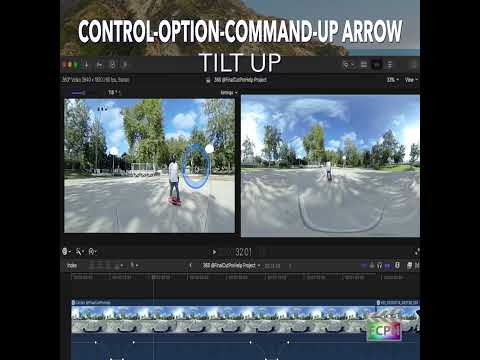
Mastering the Control-Option-Command-Up Arrow Shortcut for 360° Video Editing in Final Cut Pro
Final Cut Pro is one of the most powerful video editing tools available, offering a vast array of features for editors working with both standard and…
-

Using the Option-Up Arrow Shortcut in Final Cut Pro to Move a Selection Up
Option-Up Arrow runs the Final Cut Pro command Move Up . Final Cut Pro describes it in one line: it moves the selection up by one unit. It's a precise…