Using the Option-Up Arrow Shortcut in Final Cut Pro to Move a Selection Up
Keyboard shortcut: OptionUp Arrow

Option-Up Arrow runs the Final Cut Pro command Move Up. Final Cut Pro describes it in one line: it moves the selection up by one unit. It's a precise, keyboard-based way to move whatever is selected upward in small steps instead of dragging it with the mouse.
What It Is (and Isn't)
Move Up moves things up. It isn't the shortcut for sliding a clip earlier or later in time by a frame. To nudge a timeline clip left or right in time, use Comma (Nudge Left) and Period (Nudge Right). Option-Up Arrow is about vertical movement of the selection.
How to Use It
- Select the item you want to move.
- Press Option-Up Arrow. The selection moves up by one unit.
- Press it again to keep moving in small, equal steps.
- Press Option-Down Arrow to move back down.
Why Use It
- Precision: Every press moves exactly one unit, so moves are consistent and repeatable.
- Control: No risk of a mouse drag accidentally moving something sideways or snapping where you didn't want it.
- Speed: Keep your hands on the keyboard while you make small adjustments.
Tips
- If nothing happens, check what's selected. The command acts on the current selection, so make sure the right item is active first.
- If you use it often, open the Command Editor with Option-Command-K, search for "Move Up," and you'll see it alongside Move Down and its other related commands.
- Remember the difference: Option-Up and Option-Down move up and down; Comma and Period nudge clips in time.



Related tutorials
-
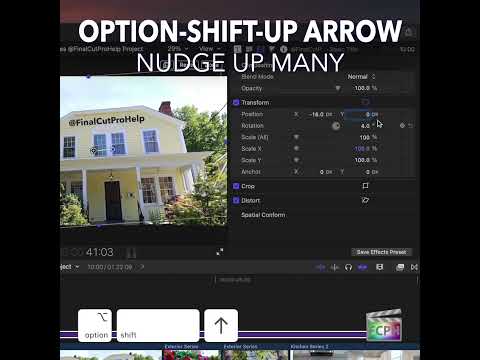
Mastering the Option-Shift-Up Arrow Shortcut in Final Cut Pro: Move Up by 10
Small, precise moves are a big part of polishing an edit. Sometimes, though, a tiny nudge is too small and you need to move something farther without…
-

Option-Down Arrow in Final Cut Pro: Move the Selection Down
In Final Cut Pro's default command set, Option-Down Arrow is the Move Down command. Apple describes it simply: it moves the selection down by one unit. It…
-
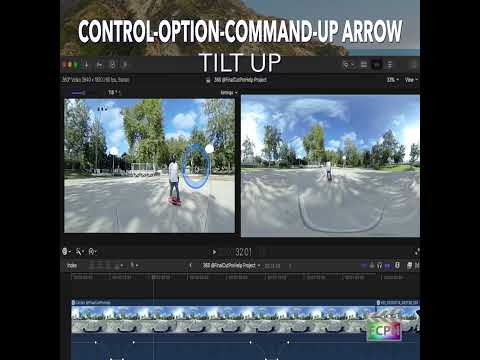
Mastering the Control-Option-Command-Up Arrow Shortcut for 360° Video Editing in Final Cut Pro
Final Cut Pro is one of the most powerful video editing tools available, offering a vast array of features for editors working with both standard and…