Mastering the Option-2 Shortcut for Multi-Camera Editing in Final Cut Pro
Keyboard shortcut: Option2
If you're editing a project with multiple camera angles, Final Cut Pro provides powerful tools to help you switch between shots quickly and efficiently. One of the most essential shortcuts for multi-camera editing is Option-2, which allows you to instantly switch to Viewer Angle 2 in your multi-camera setup. In this post, we'll explore what this shortcut does and how editors can use it to streamline their workflow.
What Is the Option-2 Shortcut?
In Final Cut Pro, the Option-2 keyboard shortcut is used to switch to Viewer Angle 2 during multi-camera editing. When you're working with a multi-camera clip (i.e., footage captured from multiple cameras), each angle is represented as a different "view" in the Viewer window.
Multi-camera editing allows editors to review and cut between different camera angles in real time, much like switching between different shots in a live production. By using shortcuts like Option-1, Option-2, Option-3, and so on, you can quickly toggle between these angles as you make edits to your sequence.
Option-2 specifically switches the multicam clip in your timeline to angle 2 of the current bank, without adding a cut. Your edit points stay where they are; only the angle for that section changes.

How Does the Option-2 Shortcut Work?
When you're editing a multi-camera clip, Final Cut Pro automatically syncs up footage from different cameras, often based on timecode or audio sync points. After setting up the multi-camera clip, you can use the following shortcuts to jump between the different angles:
- Option-1: Switches to Viewer Angle 1 (Camera 1).
- Option-2: Switches to Viewer Angle 2 (Camera 2).
- Option-3: Switches to Viewer Angle 3 (Camera 3).
- And so on...
Each of these shortcuts switches the multicam clip at the playhead (or the selected multicam clip) to that angle of the current bank. The number keys on their own, 1, 2, 3 and so on, work differently: they cut and switch at the playhead.
How Editors Use Option-2 While Editing
The Option-2 shortcut is especially useful when editing live events, interviews, performances, or any project shot with multiple cameras. Here's how editors use it:
1. Reviewing Angles Quickly
When editing a multi-camera sequence, editors need to quickly jump between different camera angles to decide which one works best for a given moment. The Option-2 shortcut allows editors to quickly switch to Camera 2 without having to click through multiple options manually.
2. Making Real-Time Edits
While reviewing footage, editors often make decisions in real time about which angle to cut to. With Option-2, they can press the shortcut to instantly switch to Camera 2 and review how the angle looks in the context of the timeline, making faster, more confident decisions.
3. Speeding Up Workflow
Multi-camera projects typically require a lot of toggling between camera angles as the editor works to build the final sequence. Using the Option-2 shortcut helps speed up the process by allowing editors to cycle through angles without interrupting their workflow. This is especially crucial when working under tight deadlines.
4. Enhancing the Editing Experience
Editing multi-camera clips can be a complex and time-consuming task. However, the Option-2 shortcut (and its counterparts) gives editors greater control and flexibility. The ability to seamlessly switch between angles, combined with other editing tools in Final Cut Pro, makes the entire process smoother and more intuitive.
Conclusion
The Option-2 keyboard shortcut is an invaluable tool for editors working with multi-camera projects in Final Cut Pro. By allowing you to quickly switch to Viewer Angle 2, it helps you work more efficiently, make faster editing decisions, and ultimately create a polished final product. Whether you're editing a live event, a film, or any other multi-camera production, mastering this shortcut will improve your editing workflow and save you valuable time.
If you haven't already, try incorporating the Option-2 shortcut (along with the others) into your editing routine and see how much faster and more fluid your multi-camera editing becomes.


Related tutorials
-
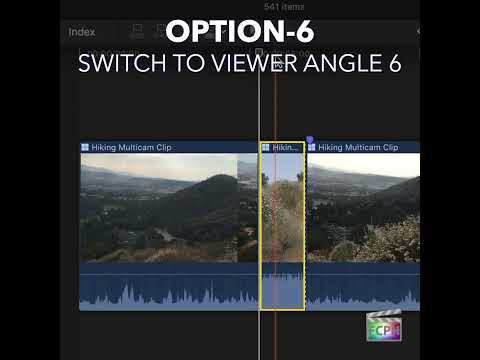
How to Use the Option-6 Shortcut in Final Cut Pro for Multi-Camera Editing
If you're an editor working with Final Cut Pro , you know that efficiency is key. Whether you're cutting a live event, interview, or a concert with…
-

How to Use the Option-4 Shortcut for Multi-Camera Editing in Final Cut Pro
If you're an editor working with Final Cut Pro and multi-camera footage, you know how crucial it is to be able to switch between different camera angles…
-

How to Use the Option-3 Keyboard Shortcut in Final Cut Pro for Multi-Camera Editing
In Final Cut Pro, Option-3 runs Switch to Viewer Angle 3 . It switches the multicam clip in your project to angle 3 of the current bank. It's a switch…