How to Use the Option-3 Keyboard Shortcut in Final Cut Pro for Multi-Camera Editing
Keyboard shortcut: Option3

What Option-3 Does
In Final Cut Pro, Option-3 runs Switch to Viewer Angle 3. It switches the multicam clip in your project to angle 3 of the current bank. It's a switch, not a cut: the section of the multicam clip you're on changes to angle 3, and no new edit point is added.
Switch vs. Cut
Pressing the number keys on their own cuts and switches, adding an edit at the playhead. Holding Option switches the existing section instead. That's perfect for your second pass, when the cuts are in the right places but a section should show a different camera.
How to Use It
- Edit a multicam clip into your project.
- Open the Angle Viewer with Shift-Command-7 so you can see all your angles.
- Click the section of the multicam clip you want to change, or park the playhead in it.
- Press Option-3. That section now uses angle 3 from the current bank.
- Play it back to check the result.
Tips
- Angle 3 means the third angle in the current bank. If your multicam clip has more angles than the Angle Viewer shows, use Option-Shift-Apostrophe and Option-Shift-Semicolon to change banks.
- Whether the switch affects video, audio, or both depends on the multicam switching mode you've chosen (Option-Shift-1, 2, or 3).
- Option-1 through Option-9 work the same way for the other angles.




Related tutorials
-
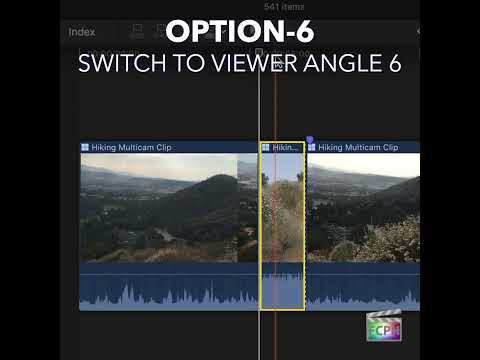
How to Use the Option-6 Shortcut in Final Cut Pro for Multi-Camera Editing
If you're an editor working with Final Cut Pro , you know that efficiency is key. Whether you're cutting a live event, interview, or a concert with…
-

How to Use the Option-4 Shortcut for Multi-Camera Editing in Final Cut Pro
If you're an editor working with Final Cut Pro and multi-camera footage, you know how crucial it is to be able to switch between different camera angles…
-

Mastering the Option-2 Shortcut for Multi-Camera Editing in Final Cut Pro
If you're editing a project with multiple camera angles, Final Cut Pro provides powerful tools to help you switch between shots quickly and efficiently…