How to Use the Option-6 Shortcut in Final Cut Pro for Multi-Camera Editing
Keyboard shortcut: Option6
If you're an editor working with Final Cut Pro, you know that efficiency is key. Whether you're cutting a live event, interview, or a concert with multiple cameras, having a smooth workflow is essential. One of the most useful shortcuts for streamlining your editing process is the Option-6 keyboard shortcut, which helps you quickly switch to Viewer Angle 6 in a multi-camera project.
In this post, we'll explore what the Option-6 shortcut does, how it fits into a multi-camera editing workflow, and how you can use it to edit more efficiently.
What Does Option-6 Do in Final Cut Pro?
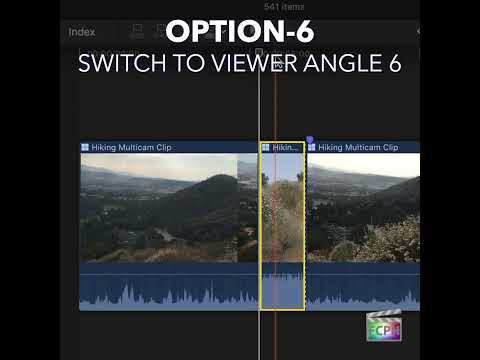
In Final Cut Pro, Option-6 is a keyboard shortcut that switches the multicam clip to angle 6 of the current bank, without adding a cut. This functionality is a part of multi-camera editing. When you're working with footage from multiple cameras, Final Cut Pro allows you to view and switch between different camera angles directly within the Viewer window.
What is a Multi-Camera Project?
A multi-camera project is an editing workflow where multiple cameras record the same event from different angles. Final Cut Pro provides tools for syncing and switching between these camera angles during the editing process. For example, during a live performance, you might have cameras positioned at different spots around the stage, capturing the action from various perspectives.
How Editors Use Option-6 During Editing
When you're working with a multi-camera setup, you'll typically have several camera angles to choose from. These camera angles are displayed in the Viewer window. Using keyboard shortcuts like Option-6 can drastically speed up your editing process by allowing you to quickly toggle between these angles without needing to click around manually.
1. Switch Between Camera Angles Quickly
The Option-6 shortcut allows you to switch directly to Camera Angle 6 in your multi-camera clip. This can be incredibly useful if you're reviewing footage and want to quickly jump to a specific camera angle.
2. Make Seamless Cuts
Option-6 doesn't cut. It changes the angle of the existing section and leaves your edit points where they are. To cut and switch to angle 6 at the playhead, press 6 without Option.
3. Improved Workflow
Using Option-6 (and other camera-angle shortcuts) ensures you don't have to click through the Viewer window manually. Instead, you can focus on the editing task at hand, whether it's syncing footage or choosing the best angle for a particular moment in the video.
How Multi-Camera Editing Works in Final Cut Pro
To take advantage of Option-6, you'll need to be working with a multi-camera clip. Here's a brief overview of how multi-camera editing works in Final Cut Pro:
- Step 1: Sync Your Clips
Import footage from multiple cameras and sync the clips using audio, timecode, or markers. Once synced, Final Cut Pro combines them into a single multi-camera clip. - Step 2: Enable Multi-Camera Editing
In your timeline, make sure to enable Angle Viewer. This will display thumbnails for each camera angle that you can choose from. - Step 3: Switch Between Angles
With Angle Viewer enabled, you can use keyboard shortcuts like Option-1, Option-2, etc., to switch between different camera angles. Option-6 will switch to the sixth camera angle, assuming it's part of the project. - Step 4: Edit and Refine
Once you're in the right camera angle, you can start cutting the footage into your timeline, making adjustments as needed.
Other Helpful Shortcuts for Multi-Camera Editing
To maximize your editing speed, it's good to be familiar with other shortcuts for multi-camera editing in Final Cut Pro:
- Option-1: Switch to Viewer Angle 1
- Option-2: Switch to Viewer Angle 2
- Option-3: Switch to Viewer Angle 3
- Option-4: Switch to Viewer Angle 4
- Option-5: Switch to Viewer Angle 5
- Option-7: Switch to Viewer Angle 7 (if available)
- Option-8: Switch to Viewer Angle 8 (if available)
The more angles you have in your multi-camera project, the more shortcuts you'll have to work with!
Why Use Option-6?
The primary benefit of using Option-6 is speed and efficiency. Instead of manually selecting angles in the Viewer, you can instantly switch to the sixth camera angle with a simple keyboard shortcut. This is crucial when editing high-pressure events or large-scale projects, where time is of the essence.
Additionally, keyboard shortcuts keep you in the flow of editing without interruption. The fewer clicks you make, the faster your edits become.
Conclusion
In multi-camera editing, Option-6 is one of the shortcuts that can save you significant time. Whether you're working on a live performance, a corporate video, or an interview, switching between camera angles becomes effortless with Option-6 and other multi-camera shortcuts. By incorporating this shortcut into your workflow, you'll be able to edit faster and more efficiently, allowing you to focus on the creative aspects of your project.
Happy editing!


Related tutorials
-

How to Use the Option-4 Shortcut for Multi-Camera Editing in Final Cut Pro
If you're an editor working with Final Cut Pro and multi-camera footage, you know how crucial it is to be able to switch between different camera angles…
-

Mastering the Option-2 Shortcut for Multi-Camera Editing in Final Cut Pro
If you're editing a project with multiple camera angles, Final Cut Pro provides powerful tools to help you switch between shots quickly and efficiently…
-

How to Use the Option-3 Keyboard Shortcut in Final Cut Pro for Multi-Camera Editing
In Final Cut Pro, Option-3 runs Switch to Viewer Angle 3 . It switches the multicam clip in your project to angle 3 of the current bank. It's a switch…