Mastering the "I" Keyboard Shortcut in Final Cut Pro: A Guide for Editors
Keyboard shortcut: I
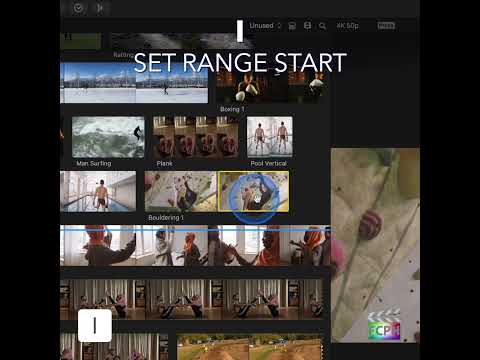
Final Cut Pro is packed with powerful editing tools designed to help filmmakers and video editors work more efficiently. One of the most useful shortcuts in your editing workflow is the I key, which allows you to Set Range Start—a vital step in many editing tasks.
In this post, we’ll break down what the I shortcut does, why it’s essential for editors, and how you can incorporate it into your editing process for greater precision and efficiency.
What Does the "I" Keyboard Shortcut Do?
In Final Cut Pro, pressing the I key sets the In Point of a selected clip or range. The In Point marks the beginning of a section you want to edit, trim, or manipulate. Whether you're cutting clips, defining ranges, or preparing for export, this simple keyboard shortcut helps you control exactly where the action begins.
In practical terms:
- The In Point is where Final Cut Pro will start playback or editing.
- By marking this point, you tell the software which part of the clip or sequence you want to work with.
In the context of Final Cut Pro’s editing timeline, pressing I is a quick and effective way to establish the start of your edit or range.
How Editors Use the "I" Shortcut
1. Marking the Part of a Clip You Want
One of the most common uses for the I key is marking just the part of a clip you want. Position the playhead or skimmer on the frame where the good part starts and press I. This sets the start of a range selection. Pressing I doesn’t trim the clip by itself; it marks a range that you then act on, such as editing just that part into your project or deleting it from the timeline.
2. Defining a Range for Editing or Export
When you're working with a range of a clip (for example, a specific section you want to use in a sequence), the I key helps you mark the beginning of that range. After pressing I, you can use the O key to set the Out Point, creating a defined range in the timeline. You can then cut, copy, or export only that segment.
3. Creating Sequences and Organizing Clips
In Final Cut Pro, the I shortcut is invaluable when organizing clips into sequences. Whether you’re assembling a rough cut or refining your timeline, setting a clear In Point ensures that you’re working with the correct starting frame. You can use I to mark the start of clips or entire sequences, making it easier to assemble your final edit.
4. Working with Audio Sync
If you’re syncing audio to video, precise timing is crucial. By positioning the playhead at the exact point where you want your audio or video to start, pressing I allows you to create an accurate In Point. This ensures that your clips are perfectly aligned, even down to the frame level.
5. Streamlining Exporting
When you're ready to export a specific part of your project, you can use the I and O keys to define the portion of the clip or timeline you want to export. Set your In Point with I, and then use O to mark the Out Point. This will allow Final Cut Pro to export only the selected range, helping you save time and keep your project organized.
Tips for Using the "I" Shortcut More Effectively
- Zoom In for Precision: When using the I key to set an In Point, make sure you're zoomed in on the timeline to fine-tune your selection. This is especially useful when syncing clips or working with detailed edits.
- Combine with Other Shortcuts: Pair the I key with other shortcuts, like O (Set Range End), for even faster editing. For example, you can quickly mark a range with I for the start and O for the end, and then move on to the next task without needing to manually select each clip.
- Mark Clips in the Browser: When you skim or play a clip in the Browser (it shows in the Viewer), you can press I to set the start of your range before editing it into your timeline. This lets you select exactly which part of the clip you want to use.
Conclusion
The I keyboard shortcut in Final Cut Pro is a small but mighty tool in an editor’s arsenal. By setting the In Point (Range Start) with this simple shortcut, you gain greater control over your editing process, whether you're trimming clips, creating ranges, or exporting your work. The ability to quickly and precisely define the start of a clip or section can save you time and help you produce more professional, polished results.
Next time you're in Final Cut Pro, remember to put the I key to work—it might just be the shortcut that takes your editing to the next level!





Related tutorials
-
How to Use the Command-I Keyboard Shortcut to Import Media in Final Cut Pro
Whether you’re working on a complex film project or a quick video edit, one of the essential tasks you’ll perform in Final Cut Pro is importing media…
-

How to Use the Option-Shift-I Shortcut in Final Cut Pro to Play From Beginning
Final Cut Pro is a powerful video editing tool that offers a wide array of shortcuts to help editors work more efficiently. One of the most useful…
-

Mastering Final Cut Pro: How to Use the Shift-I Keyboard Shortcut to Speed Up Your Editing Workflow
Final Cut Pro is a powerful tool for video editing, and as any seasoned editor knows, efficiency is key to creating high-quality content while meeting…