Mastering Final Cut Pro: How to Use the Shift-I Keyboard Shortcut to Speed Up Your Editing Workflow
Keyboard shortcut: ShiftI
Final Cut Pro is a powerful tool for video editing, and as any seasoned editor knows, efficiency is key to creating high-quality content while meeting tight deadlines. One way to significantly improve your workflow is by mastering keyboard shortcuts. In this post, we’ll explore one of the most useful shortcuts in Final Cut Pro: Shift-I.
What Does the Shift-I Shortcut Do in Final Cut Pro?
In Final Cut Pro, the Shift-I keyboard shortcut is used to go to the range start. This means that it moves your playhead (the indicator that shows where you are in the timeline) to the beginning of a selected range.
But what exactly is a range?
A range refers to a specific section of your clip or timeline that you’ve defined by marking an In Point (I) and an Out Point (O). These points allow you to isolate a portion of your footage for easier navigation, trimming, and editing. Once you’ve marked a range, you can use the Shift-I shortcut to quickly jump to the beginning of that range, making your editing process faster and more efficient.

How to Use Shift-I in Your Editing Workflow
Understanding how to use the Shift-I shortcut can make navigating your timeline much easier, especially when working on larger projects. Here’s how you can incorporate it into your editing workflow:
1. Mark Your Range (In and Out Points)
Before you can use Shift-I, you need to define a range. You can do this by marking an In Point with the I key and an Out Point with the O key. These marks will outline the section of your clip or timeline that you want to focus on.
- I (In Point): Sets the beginning of your range.
- O (Out Point): Sets the end of your range.
Once these points are marked, you have a defined range to work with.
2. Jump to the Range Start Using Shift-I
Now that you’ve marked your In and Out Points, use the Shift-I keyboard shortcut to quickly move the playhead to the beginning of your defined range. This is much faster than manually dragging the playhead or using the arrow keys to move incrementally through your timeline.
This feature is particularly useful when you want to return to the beginning of a specific section you’re working on, without having to reset your markers or search for the start of that range again.
3. Speed Up Your Workflow with Other Navigation Shortcuts
In combination with other Final Cut Pro navigation shortcuts, Shift-I can help you move through your timeline more efficiently:
- Shift-O: Moves the playhead to the Out Point (the end of your range).
- J, K, L: These keys allow you to rewind, pause, and fast-forward your playback, respectively.
By using Shift-I along with these other shortcuts, you can quickly jump between various ranges and sections in your timeline, making your editing process smoother and more organized.
Why Editors Love Shift-I
For editors, time is precious. The ability to quickly navigate your timeline and access specific sections of footage is crucial when working with large projects, multiple clips, or complex timelines. By using Shift-I, editors can:
- Navigate with precision: Jump to the beginning of a range without any guesswork or manual movement of the playhead.
- Save time: Avoid the need to scroll or scrub through long timelines when reviewing or editing specific sections.
- Stay focused: Quickly return to important parts of your project, allowing you to maintain your momentum and workflow.
Conclusion
The Shift-I keyboard shortcut is an indispensable tool for any Final Cut Pro editor. By mastering this shortcut, you can dramatically improve your efficiency, allowing you to move quickly and precisely through your timeline. Whether you’re editing a short video or working on a large project, Shift-I will help you get the job done faster, without compromising on quality.
Ready to take your editing skills to the next level? Start using Shift-I today and watch how much more efficient your workflow becomes!
Stay tuned for more tips and tricks to help you make the most of Final Cut Pro and improve your editing workflow.




Related tutorials
-

How to Use the Option-Shift-I Shortcut in Final Cut Pro to Play From Beginning
Final Cut Pro is a powerful video editing tool that offers a wide array of shortcuts to help editors work more efficiently. One of the most useful…
-

Boost Your Final Cut Pro Efficiency with the Shift-Command-I Shortcut
Most of the time you mark one range at a time. But when a long clip has several moments you want, it's faster to mark them all at once. Shift-Command-I…
-
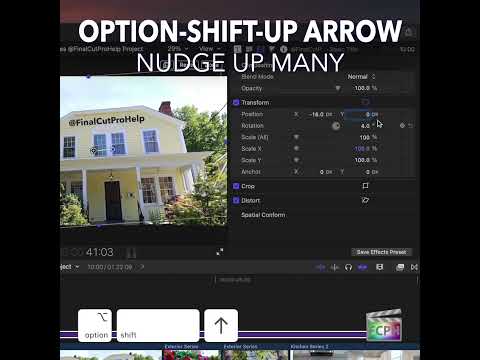
Mastering the Option-Shift-Up Arrow Shortcut in Final Cut Pro: Move Up by 10
Small, precise moves are a big part of polishing an edit. Sometimes, though, a tiny nudge is too small and you need to move something farther without…