How to Use the Option-Shift-I Shortcut in Final Cut Pro to Play From Beginning
Keyboard shortcut: OptionShiftI
Final Cut Pro is a powerful video editing tool that offers a wide array of shortcuts to help editors work more efficiently. One of the most useful shortcuts for quickly navigating and reviewing your project is Option-Shift-I, which triggers the Play from Beginning command. This simple yet effective shortcut can save you time and keep you focused on your editing tasks without constantly having to move the playhead manually.
In this post, we’ll break down what Option-Shift-I does in Final Cut Pro and how editors can incorporate it into their workflow for better efficiency and faster editing.
What Does Option-Shift-I Do?
When you press Option-Shift-I in Final Cut Pro, the playhead automatically jumps to the very beginning of the timeline (or the start of your project) and playback begins from there. This is especially useful when you want to quickly preview or review your project from start to finish without having to drag the playhead or reposition it manually.
This shortcut is part of the broader suite of keyboard shortcuts that Final Cut Pro offers to streamline the editing process, and it's one of those commands that can help keep your flow uninterrupted.

How Editors Can Use the Option-Shift-I Shortcut in Their Workflow
The Option-Shift-I shortcut is invaluable for several reasons. Here's how editors can make the most of it during the editing process:
1. Quickly Review Your Work
After making significant edits, you might want to quickly check how everything looks and sounds from the beginning of the project. Rather than scrubbing through the timeline or manually repositioning the playhead, the Option-Shift-I shortcut instantly plays the project from the very first frame. It’s a fast way to see how your changes fit together.
2. Check Transitions, Cuts, and Effects
When you're editing a video and adding transitions, cuts, or effects, it's important to check how these elements play out throughout your project. With Option-Shift-I, you can start playback from the beginning, allowing you to see the entire timeline flow seamlessly from the start. This helps you identify any issues with transitions or timing that may need adjustment.
3. Start Fresh at the Beginning of Your Editing Session
After taking a break or when starting a new session, editors often want to review their progress from the start. By pressing Option-Shift-I, you can quickly jump to the beginning of your timeline and resume working, without losing any time navigating the interface. This is especially helpful for re-familiarizing yourself with your project after being away from it for a while.
4. Syncing Audio and Video
One of the most common tasks in editing is syncing audio with video. Sometimes you need to review the entire sequence to ensure everything is perfectly aligned. The Option-Shift-I shortcut is ideal for this, as it lets you start playback from the very beginning and evaluate how well the audio and visual elements sync throughout the project.
5. Save Time and Stay in the Editing Flow
The real power of keyboard shortcuts is that they allow editors to stay in the editing flow. Instead of stopping to drag the playhead or make additional clicks, Option-Shift-I lets you instantly jump to the start and begin playback, helping you avoid distractions and stay focused on the task at hand.
Conclusion
The Option-Shift-I keyboard shortcut for Play from Beginning is a simple yet powerful tool that can significantly speed up your workflow in Final Cut Pro. Whether you're reviewing recent edits, checking for smooth transitions, or syncing audio and video, this shortcut makes it easier to play your entire timeline from the start with minimal effort.
By incorporating this shortcut into your daily editing routine, you'll find that you can work more efficiently, maintain your creative flow, and ultimately save time when navigating through your project. So next time you're ready to review your work or start fresh, give Option-Shift-I a try—it’s one small shortcut with big results!
By including Option-Shift-I in your Final Cut Pro toolkit, you’ll streamline your editing process and keep your project moving forward with ease. Happy editing!




Related tutorials
-
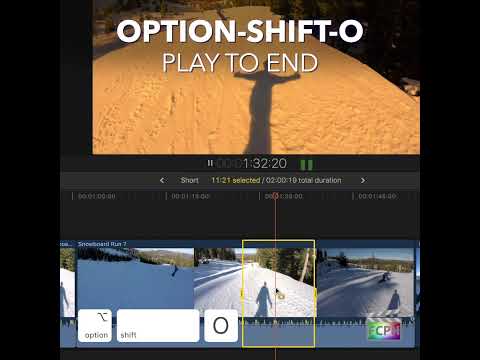
Mastering Final Cut Pro: The Power of the "Play to End" Shortcut (Option-Shift-O)
When it comes to editing in Final Cut Pro , efficiency is key. Whether you’re trimming clips, fine-tuning audio, or reviewing your timeline for errors…
-
Final Cut Pro Shortcut | Option-Shift-Z | Vertical Zoom to Fit Timeline
If you're editing videos in Final Cut Pro, you know how important it is to keep your workflow smooth and efficient. One of the lesser-known but incredibly…
-

Mastering Final Cut Pro: How to Use the Option-Shift-X Shortcut to Cut Keyframes
Keyframes animate things like position, scale, opacity and effect settings over time. When an animation is in the wrong place, or belongs on a different…