Mastering the Control-Option-Left Arrow Shortcut in Final Cut Pro for Auditions
Keyboard shortcut: ControlOptionLeft Arrow
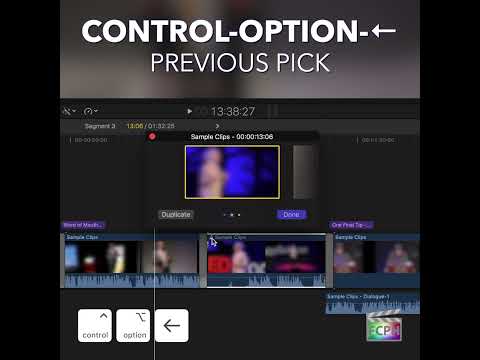
Auditions are one of the best ways to compare takes in Final Cut Pro without cluttering your timeline. Control-Option-Left Arrow is the Previous Pick command. It selects the previous clip in the Audition window and makes it the audition’s pick.
What Is a Pick?
An audition is a single clip in your timeline that holds several alternatives, such as different takes of the same line. The pick is the version that’s currently active, the one that plays in your project. The other versions wait inside the audition until you choose them.
How to Use Control-Option-Left Arrow
- Create an audition by selecting your alternate takes in the Browser and pressing Command-Y, then edit it into your project. (Auditions show a spotlight icon.)
- Select the audition in the timeline and press Y to open the Audition window.
- Press Control-Option-Left Arrow. The previous clip in the Audition window becomes the pick.
- Play it back to see how that take works in the context of your edit.
- Keep pressing to step back through the takes. When you find the one you want, click Done.
Why It’s Useful
- Compare takes in context: Hear and see each option with the clips around it, not in isolation.
- Keyboard-driven: Step through options without clicking each thumbnail.
- Non-destructive: Every take stays inside the audition, so you can always change your mind later.
Tips
- There’s a matching Next Pick command for stepping forward through the takes.
- Once you’ve made a final decision, you can finalize the audition (Clip > Audition > Finalize Audition) to turn it back into a regular clip.
If you ever find yourself stuck between two takes, put them in an audition and let Control-Option-Left Arrow help you decide.


Related tutorials
-

How to Use the Control-Option-Command-Left Arrow Shortcut to Pan 360° Video in Final Cut Pro
If you're working with 360° video in Final Cut Pro , you're probably familiar with the complexities of navigating a spherical video environment. Editing…
-

How to Use the Control-Option-Command-Right Arrow Shortcut in Final Cut Pro for 360° Video Editing
If you're working with 360-degree video in Final Cut Pro , one of the most helpful tools at your disposal is the ability to quickly navigate your footage…
-
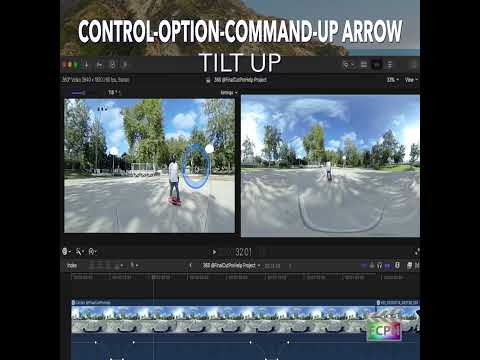
Mastering the Control-Option-Command-Up Arrow Shortcut for 360° Video Editing in Final Cut Pro
Final Cut Pro is one of the most powerful video editing tools available, offering a vast array of features for editors working with both standard and…