Mastering the Control-[ Keyboard Shortcut in Final Cut Pro: Select the Left Video Edge
Keyboard shortcut: ControlLeft Bracket

What Control-[ Does
In Final Cut Pro, Control-[ (Left Bracket) runs Select Left Video Edge. When an audio/video clip's audio is expanded, it selects the left edge of the video edit point, the end of the video on the clip to the left of the edit. It doesn't move the playhead to the start of a clip.
Why Select Just the Video Edge?
With audio expanded, the video and audio parts of an edit can be trimmed separately. Selecting only the video edge lets you trim the picture while the audio edit stays where it is. That's how you build split edits, like L-cuts and J-cuts, without dragging.
How to Use It
- Select the clips and press Control-S to expand their audio.
- Move the skimmer or playhead near the edit point you want to work on.
- Press Control-[. The left video edge of that edit is selected.
- Press Comma or Period to trim it one frame at a time, or Shift-Comma and Shift-Period for ten frames.
- Play back the edit. The video cut has moved, while the audio edit hasn't.
Tips
- Trimming the outgoing video shorter while its audio keeps going gives you an L-cut, a classic for interviews.
- Use the regular [ key when you want to select the left edge of both video and audio together.
- Press Control-S again to collapse the audio when you're finished.




Related tutorials
-

Mastering the Control-] (Select Right Video Edge) Shortcut in Final Cut Pro
Split edits, where picture and sound change at different moments, make dialogue scenes feel smooth and natural. In Final Cut Pro, Control-] (Control-Right…
-
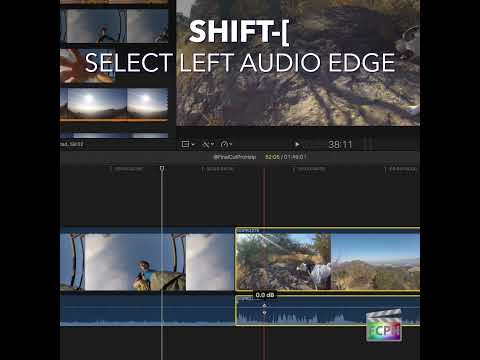
Mastering Final Cut Pro: How to Use the Shift-[ Shortcut to Select the Left Audio Edge
Split edits, where the sound changes at a different moment than the picture, make dialogue scenes feel natural. Shift-[ (Shift-Left Bracket) gives you a…
-

How to Use the Control-Option-Command-Left Arrow Shortcut to Pan 360° Video in Final Cut Pro
If you're working with 360° video in Final Cut Pro , you're probably familiar with the complexities of navigating a spherical video environment. Editing…