Mastering Final Cut Pro: How to Use the Shift-[ Shortcut to Select the Left Audio Edge
Keyboard shortcut: ShiftLeft Bracket
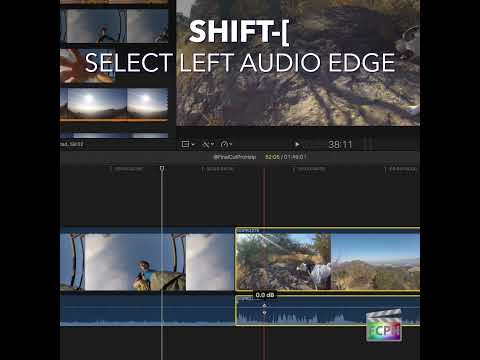
Split edits, where the sound changes at a different moment than the picture, make dialogue scenes feel natural. Shift-[ (Shift-Left Bracket) gives you a fast, keyboard-only way to grab exactly the audio edge you need to build one.
What Does Shift-[ Do?
Shift-[ runs Select Left Audio Edge. It selects the left edge of the audio edit point when audio and video are expanded in the timeline.
At any edit point, the left edge belongs to the clip on the left, the outgoing clip. So Shift-[ selects the end of the outgoing clip's audio at that cut, without selecting its video.
Before You Start: Expand Audio and Video
This shortcut works on expanded clips. Select the clips around your cut and press Control-S to expand audio and video, so their audio and video edges can be selected separately.
How to Build an L-Cut
- Expand the clips on both sides of the cut with Control-S.
- Move the playhead or skimmer near the edit point.
- Press Shift-[. The left audio edge of that edit highlights.
- Press the period key a few times to extend the outgoing audio past the cut, or drag the selected edge.
- Play it back. The picture cuts on time, but the outgoing sound carries over into the next shot.
Practical Tips
- Zoom into the timeline so you can see the edge highlight clearly before you nudge it.
- The comma and period keys move a selected edge one frame at a time, which is perfect for fine-tuning the overlap.
- Need the video side instead? Control-\ selects both video edges of the edit so you can roll just the picture cut.
Once you know which edge you're selecting, split edits become a few quick keystrokes instead of careful mouse work.


Related tutorials
-

Mastering the Control-[ Keyboard Shortcut in Final Cut Pro: Select the Left Video Edge
In Final Cut Pro, Control-[ (Left Bracket) runs Select Left Video Edge . When an audio/video clip's audio is expanded, it selects the left edge of the…
-

Option-Shift-, (Comma) in Final Cut Pro: Nudge an Audio Edit Point Left 10 Subframes
The Option-Shift-, (Comma) shortcut in Final Cut Pro is Nudge Audio Subframe Left Many . It nudges the selected audio edit point to the left by 10…
-

Shift-\ in Final Cut Pro: Select Both Audio Edges of an Edit Point
The Shift-\ (Backslash) shortcut in Final Cut Pro selects the left and right audio edges of an edit point at the same time. It only does this when the…