Mastering Multicam Editing in Final Cut Pro: The Power of Option-Shift-2
If you're a video editor working with multicam footage in Final Cut Pro, you're likely familiar with the challenge of switching between multiple video angles while keeping your audio intact. Thankfully, Final Cut Pro offers a powerful keyboard shortcut that can make this process smoother and more efficient: Option-Shift-2.
In this post, we'll break down what this keyboard shortcut does, how to use it in your workflow, and why it's a game-changer for editors working with multicam clips.
What Does Option-Shift-2 Do in Final Cut Pro?
The Option-Shift-2 keyboard shortcut in Final Cut Pro is used to cut or switch between video angles in a multicam clip without affecting the audio. In simpler terms, this shortcut allows you to change the video track, but leave the audio track unaffected.
When editing with multiple camera angles (multicam editing), you often need to switch between different video views, but in many cases, the audio should remain continuous—especially when it's recorded from a single source or synced across all angles. With Option-Shift-2, you can switch the video angle and maintain the same audio throughout the edit.
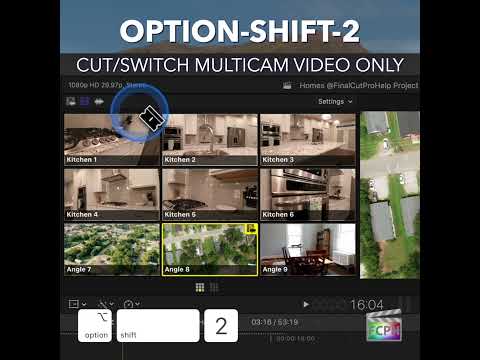
How to Use Option-Shift-2 in Your Editing Workflow
Here’s a step-by-step look at how this shortcut can be used effectively while editing a multicam project in Final Cut Pro:
1. Set Up Your Multicam Clip
- Import your multicam footage (multiple camera angles) into Final Cut Pro.
- Create a multicam clip by syncing your different camera angles and audio sources together.
2. Start Editing Your Sequence
- Drag the multicam clip to the timeline and enable the Angle Viewer to easily see all the different camera angles.
- Start editing your multicam sequence by cutting between angles, but typically, this would also affect your audio.
3. Use Option-Shift-2 to Switch Video Without Changing Audio
- While you're playing through your timeline, you may decide that you want to switch the video angle for a more dynamic shot or different perspective.
- Instead of manually cutting and adjusting the audio every time you switch, simply press Option-Shift-2. This will change the video angle, but leave the audio track untouched.
4. Enjoy Seamless Audio Continuity
- The beauty of Option-Shift-2 is that it allows you to focus solely on the video edit, without worrying about maintaining audio sync or continuity.
- This is especially useful for projects like interviews, live events, concerts, or any situation where the video angles may need frequent switching, but the audio should remain consistent.
When to Use Option-Shift-2 in Your Workflow
This keyboard shortcut is particularly useful in scenarios where:
- You have multiple camera angles covering the same event (e.g., a conference, concert, or sports game).
- The audio is consistent and should not be altered when switching video angles.
- You need to maintain sync between the video and audio while working efficiently.
Real-World Example: Editing a Live Concert Video
Imagine you're editing a live concert video with multiple camera angles. The audio was recorded using a single source—perhaps a stereo recording from the soundboard.
As an editor, you might want to switch between different camera angles for variety: one showing the drummer, another on the lead guitarist, and yet another on the audience. However, since the audio remains the same throughout the concert, you don't want to interrupt the flow by cutting the audio every time you switch the video.
With Option-Shift-2, you can easily switch between video angles while maintaining the same, uninterrupted audio. This lets you focus on getting the perfect shot for each moment, without worrying about the audio track drifting out of sync.
Conclusion
The Option-Shift-2 keyboard shortcut in Final Cut Pro is a simple yet powerful tool for editors working with multicam footage. By allowing you to switch video angles without disrupting the audio, it gives you greater flexibility and efficiency during the editing process. Whether you're editing a live performance, an interview, or a multi-camera event, this shortcut helps you maintain the flow of your project while saving time.
So, next time you're editing a multicam project, remember to put Option-Shift-2 to use. It could be the key to making your edits smoother and more professional.
Tips:
- Keyboard Shortcut Customization: If Option-Shift-2 doesn't feel intuitive, you can always customize your keyboard shortcuts in Final Cut Pro to suit your editing preferences.
- Multicam Angle Viewer: Make sure the Angle Viewer is enabled so you can easily see and switch between your camera angles as you work.
Happy editing!
This format should be both informative and engaging for readers, with practical advice on how to incorporate the shortcut into their editing workflow.


Related tutorials
-

Option-Shift-1 in Final Cut Pro: Multicam Audio and Video Switching
When you cut a multicam clip in Final Cut Pro, each cut or switch can change the video, the audio, or both. Option-Shift-1 turns on audio/video mode , so…
-
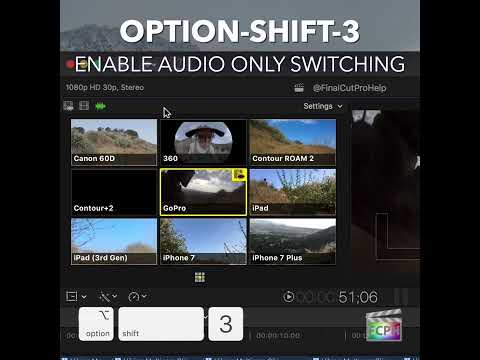
Maximizing Your Final Cut Pro Workflow with the Option-Shift-3 Shortcut: Audio-Only Multicam Switching
In Final Cut Pro, Option-Shift-3 runs Cut/Switch Multicam Audio Only . It turns on audio-only mode for multicam cutting and switching. After you press it…
-

Mastering Final Cut Pro: How to Use the Option-Shift-; Keyboard Shortcut for Multicam Banks
In Final Cut Pro, Option-Shift-; (Semicolon) runs Go to Previous Bank . It shows the previous bank of multicam angles in the Angle Viewer. It's a multicam…