Option-Shift-1 in Final Cut Pro: Multicam Audio and Video Switching
Keyboard shortcut: OptionShift1

When you cut a multicam clip in Final Cut Pro, each cut or switch can change the video, the audio, or both. Option-Shift-1 turns on audio/video mode, so every multicam cut or switch changes both the picture and the sound to the angle you choose. It doesn't separate or sync tracks; it sets what your next multicam edits affect.
The Three Modes
- Option-Shift-1: cut and switch audio and video together.
- Option-Shift-2: video only. The picture changes, the audio stays.
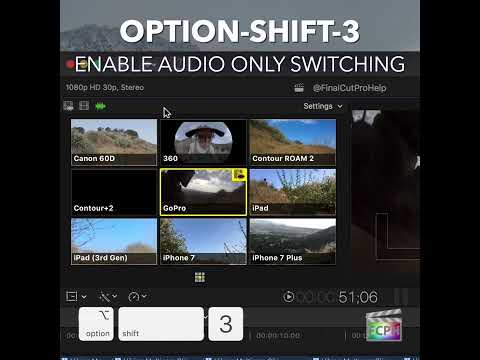
- Option-Shift-3: audio only. The sound changes, the picture stays.
You can see the current mode in the Angle Viewer, where the active angle is highlighted in a color that matches the mode.
How to Use It
- Put a multicam clip in your timeline and open the Angle Viewer (Shift-Command-7).
- Press Option-Shift-1 to switch to audio/video mode.
- Play the timeline and click an angle in the Angle Viewer, or press a number key, to cut to that angle. Both the picture and the sound now come from that camera.
When to Use Each Mode
- Audio and video (Option-Shift-1): when each camera recorded its own good audio, such as a two-person interview with a mic on each camera.
- Video only (Option-Shift-2): the most common choice when you have one clean audio source, like a separate recorder, and just want to change shots over it.
- Audio only (Option-Shift-3): for fixing the sound on a section without touching your picture edit.
Tip
Check the mode before you start cutting. If you're in audio/video mode by accident, your carefully chosen audio can switch along with every shot change. Pressing Option-Shift-2 before you start is a good habit when you have a single clean audio source.


Related tutorials
-
Maximizing Your Final Cut Pro Workflow with the Option-Shift-3 Shortcut: Audio-Only Multicam Switching
In Final Cut Pro, Option-Shift-3 runs Cut/Switch Multicam Audio Only . It turns on audio-only mode for multicam cutting and switching. After you press it…
-

Boost Your Editing Efficiency: How the Shift-1 Shortcut Sets Source Media to Audio and Video in Final Cut Pro
Have you ever edited a clip into your timeline and ended up with only the picture, or only the sound? That's usually the source media setting. Shift-1…
-

Option-Shift-, (Comma) in Final Cut Pro: Nudge an Audio Edit Point Left 10 Subframes
The Option-Shift-, (Comma) shortcut in Final Cut Pro is Nudge Audio Subframe Left Many . It nudges the selected audio edit point to the left by 10…