Mastering Multicam Editing in Final Cut Pro: How to Use the Control-Shift-Right Arrow Shortcut
Keyboard shortcut: ControlShiftRight Arrow
If you're working on a project that requires cutting between multiple camera angles, you know how crucial it is to have an efficient workflow. Whether you're editing an interview, a live performance, or a music video, multicam editing in Final Cut Pro can help you switch between different perspectives quickly and easily.
One of the most time-saving features of Final Cut Pro is its ability to sync multiple camera angles into a single multicam clip. To help speed up your editing process, Final Cut Pro includes several handy keyboard shortcuts, and one of the most powerful ones is the Control-Shift-Right Arrow shortcut.
In this post, we'll explore what this shortcut does, and how you can use it to streamline your multicam editing workflow in Final Cut Pro.
What Does the Control-Shift-Right Arrow Shortcut Do?
When working with a multicam clip in Final Cut Pro, the Control-Shift-Right Arrow shortcut allows you to quickly select the next camera angle in your timeline. This makes it much easier to cycle through different camera perspectives as you're editing, without needing to manually click through each angle or adjust the timeline view.
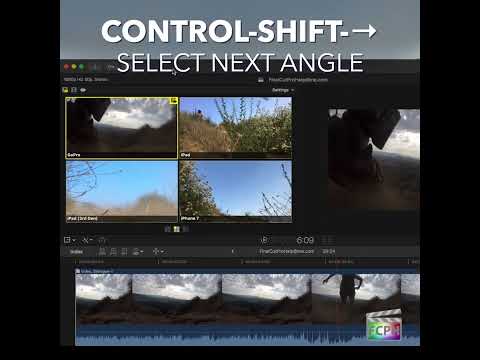
How Editors Use the Shortcut:
- Multi-Camera Editing Workflow: In a multicam editing setup, multiple clips from different cameras are synchronized into one "multicam" clip. Each camera angle is represented as a different "angle" within the clip. This allows you to easily switch between angles as you edit, which is particularly useful when you have multiple shots of the same scene or event.
- Switching Between Angles: The Control-Shift-Right Arrow shortcut allows you to quickly jump to the next available camera angle in the sequence. Whether you're reviewing your footage or making final edits, this shortcut helps you navigate through the various angles in your project without interrupting your workflow.
- Time-Saving Feature: By using this keyboard shortcut, you can cut out the need to click through each camera angle manually. Instead, you can jump from one angle to the next seamlessly. This is especially beneficial for projects where timing is key, like fast-paced events or live broadcasts.
A Practical Example:
Let’s say you’re editing a scene that’s been shot with three cameras: Camera 1, Camera 2, and Camera 3. These angles have been synced into a multicam clip. As you're working in the timeline, you can use Control-Shift-Right Arrow to cycle through these angles quickly.
Here’s how it works:
- Control-Shift-Right Arrow: Jumps to the next camera angle in the sequence.
- Control-Shift-Left Arrow (if you want to reverse the process): Takes you to the previous camera angle.
This allows you to review the footage from each camera without needing to manually select each angle from the timeline or viewer. If you're making quick cuts or reviewing footage to fine-tune your edits, this shortcut becomes an invaluable tool for speeding up the process.
Why Editors Love This Shortcut:
- Efficiency: Switching between angles has never been easier, which is crucial when working under time pressure or when trying to keep your creative flow intact.
- Seamless Workflow: Rather than clicking through menus or manually adjusting settings, you can focus on editing and refining the story. This helps maintain a smooth and uninterrupted creative process.
- Perfect for Fast-Paced Projects: Whether you’re working on an event, an interview, or a performance, being able to quickly access the next camera angle ensures that you don’t miss key moments and can make faster decisions during your edit.
Conclusion:
Mastering the Control-Shift-Right Arrow shortcut is just one way you can streamline your multicam editing workflow in Final Cut Pro. By utilizing this time-saving keyboard shortcut, you can quickly cycle through different angles and stay focused on creating the best possible edit for your project. Whether you're editing an action-packed music video or a compelling documentary, this small but mighty tool can help you edit with greater speed and efficiency.
So next time you're editing a multicam clip in Final Cut Pro, don’t forget to use Control-Shift-Right Arrow to seamlessly jump between your camera angles—your future self will thank you!


Related tutorials
-

Mastering Final Cut Pro: How the Control-Shift-Left Arrow Shortcut Switches to the Previous Multicam Angle
When you're refining a multicam edit, you often want to try a few different cameras on the same section before settling on one. Control-Shift-Left Arrow…
-

How to Use the Shift-Command-Right Arrow Keyboard Shortcut in Final Cut Pro for Multi-Camera Editing
When it comes to editing footage shot with multiple cameras, efficiency is key. Editors often need to switch between different camera angles quickly to…
-

How to Use the Control-Option-Command-Right Arrow Shortcut in Final Cut Pro for 360° Video Editing
If you're working with 360-degree video in Final Cut Pro , one of the most helpful tools at your disposal is the ability to quickly navigate your footage…