Mastering Final Cut Pro: How the Control-Shift-Left Arrow Shortcut Switches to the Previous Multicam Angle
Keyboard shortcut: ControlShiftLeft Arrow

When you're refining a multicam edit, you often want to try a few different cameras on the same section before settling on one. Control-Shift-Left Arrow lets you step through angles right from the keyboard.
What Does Control-Shift-Left Arrow Do?
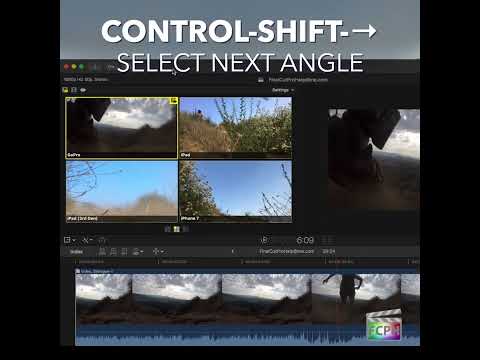
Control-Shift-Left Arrow runs Select Previous Angle. It switches to the previous angle in the multicam clip.
It doesn't move the playhead or jump between edit points. It changes which camera angle the multicam clip uses, stepping back one angle each time you press it.
How to Use It
- Open a project that contains a multicam clip.
- Select the multicam clip (or the section of it) you want to change.
- Press Control-Shift-Left Arrow. The clip switches to the previous angle.
- Press it again to keep stepping back through the angles, and play back after each change to judge the result.
Why It's Useful
- Audition cameras quickly: Step through angles on a section until one feels right, without clicking in the Angle Viewer.
- No need to remember angle numbers: Instead of recalling which number is which camera, just step through them in order.
- Keep your cut points: You're changing the angle of the selected section, so your edit timing stays the same.
Practical Tips
- Show the Angle Viewer while you work so you can see which angle you've landed on.
- If you know exactly which angle you want, the Option-number shortcuts switch straight to that angle, such as Option-8 for angle 8.
- Changed your mind? Undo (Command-Z) puts the previous angle back.
Stepping through angles from the keyboard is a fast, low-effort way to polish multicam interviews, events, and performances.


Related tutorials
-
Mastering Multicam Editing in Final Cut Pro: How to Use the Control-Shift-Right Arrow Shortcut
If you're working on a project that requires cutting between multiple camera angles, you know how crucial it is to have an efficient workflow. Whether…
-

Maximizing Efficiency in Multi-Camera Editing: How to Use the Shift-Command-Left Arrow Shortcut in Final Cut Pro
If you’re working with multiple camera angles in Final Cut Pro , you know how important it is to stay efficient while editing. One of the best ways to…
-

Mastering the Shift-Left Arrow Shortcut in Final Cut Pro: Go Back 10 Frames in a Snap
As any video editor knows, precision is key when working in a non-linear editing software like Final Cut Pro (FCP). Whether you're fine-tuning an edit…