Mastering Final Cut Pro: Using the Left Bracket ( [ ) Shortcut to Select the Left Edge of an Edit
Keyboard shortcut: Left Bracket

The Left Bracket ([) key in Final Cut Pro runs the command Select Left Edge. It selects the left edge of the edit point nearest the skimmer or playhead, which is the end of the clip on the left side of the cut. Once the edge is selected, you can trim it from the keyboard without ever grabbing it with the mouse.
What It Does (and What It Doesn't)
Left Bracket does not move the playhead to the start of a clip, and it does not trim anything by itself. It simply selects one side of an edit point so your next trim command knows what to change. The left edge is the outgoing clip's end point.
How to Use It
- In the timeline, move the playhead or skimmer near the cut you want to trim.
- Press Left Bracket ([). The end of the clip on the left side of the edit is highlighted.
- Press Comma to trim one frame earlier or Period to trim one frame later. Add Shift to move in bigger steps.
- Or type a number like -12 and press Return to trim by an exact number of frames.
Because only one edge is selected, this is a ripple trim. The clip gets shorter or longer, and the clips after it slide to close the gap or make room, so your project's length changes.
Related Shortcuts
- Right Bracket (]) selects the right edge of the edit point, the start of the incoming clip.
- Backslash (\) selects both edges at once for a roll edit, which moves the cut without changing your project's length.
Tips
- Use Left Bracket with Comma and Period to tighten pauses in an interview one frame at a time while you listen.
- If you can't lengthen the clip any further, it has run out of media past that edge.
- Keyboard trimming is precise and repeatable, which makes it ideal when you know exactly how many frames you want to remove.



Related tutorials
-

Mastering the Control-[ Keyboard Shortcut in Final Cut Pro: Select the Left Video Edge
In Final Cut Pro, Control-[ (Left Bracket) runs Select Left Video Edge . When an audio/video clip's audio is expanded, it selects the left edge of the…
-
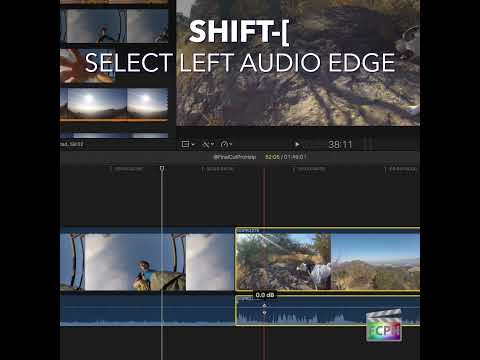
Mastering Final Cut Pro: How to Use the Shift-[ Shortcut to Select the Left Audio Edge
Split edits, where the sound changes at a different moment than the picture, make dialogue scenes feel natural. Shift-[ (Shift-Left Bracket) gives you a…
-

Mastering the ] (Right Bracket) Shortcut in Final Cut Pro: Select the Right Edge of an Edit
Trimming from the keyboard is one of the fastest ways to fine-tune an edit in Final Cut Pro, and it starts with selecting the right edit point. The ]…