Shift-\ in Final Cut Pro: Select Both Audio Edges of an Edit Point
Keyboard shortcut: ShiftBackslash

The Shift-\ (Backslash) shortcut in Final Cut Pro selects the left and right audio edges of an edit point at the same time. It only does this when the audio of your clips is expanded, which is exactly when you want it: building J-cuts and L-cuts, where the sound changes before or after the picture.
What It Selects
An edit point has two sides: the end of the outgoing clip and the start of the incoming clip. When you expand a clip's audio, each of those clips shows its video and audio separately, so the edit has video edges and audio edges. Shift-\ selects both audio edges together. With both sides selected, any trim you make is a roll of the audio edit: one clip's audio gets longer while the other's gets shorter, and the video cut stays where it is.
How to Use It
- In the timeline, select the clips on either side of the cut and press Control-S to expand their audio.
- Click near the edit point (or park the playhead on it) and press Shift-\. Both audio edges highlight.
- Press Comma or Period to roll the audio edit one frame left or right, or drag the selected edges.
- Play across the cut. You now have a split edit: the audio changes before or after the picture does.
- Press Control-S again to collapse the audio when you're done.
Tips
- J-cut: roll the audio edit to the left so the next shot's sound starts before you see it. Great for leading into an interview answer.
- L-cut: roll it to the right so the outgoing sound continues over the new shot.
- Because only the audio edges are selected, your picture edit is safe. If you want to move the video and audio together, select the edit point normally instead.
Shift-\ is a small key that makes split edits fast and precise, all without leaving the keyboard.


Related tutorials
-

How to Use the \ (Backslash) Shortcut in Final Cut Pro to Select Both Edit Edges
The Backslash (\) key in Final Cut Pro runs the command Select Left and Right Edit Edges . It selects both sides of an edit point at once: the end of the…
-

Option-Shift-, (Comma) in Final Cut Pro: Nudge an Audio Edit Point Left 10 Subframes
The Option-Shift-, (Comma) shortcut in Final Cut Pro is Nudge Audio Subframe Left Many . It nudges the selected audio edit point to the left by 10…
-
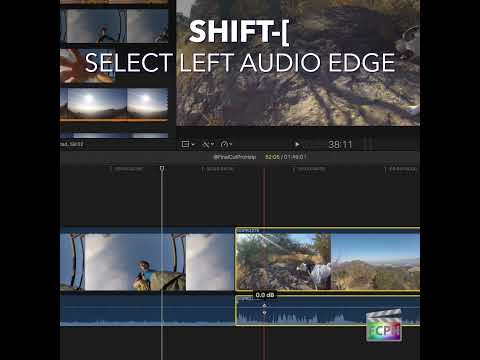
Mastering Final Cut Pro: How to Use the Shift-[ Shortcut to Select the Left Audio Edge
Split edits, where the sound changes at a different moment than the picture, make dialogue scenes feel natural. Shift-[ (Shift-Left Bracket) gives you a…