Mastering the Option-Shift-Down Arrow Shortcut in Final Cut Pro: Move Down by 10
Keyboard shortcut: OptionShiftDown Arrow
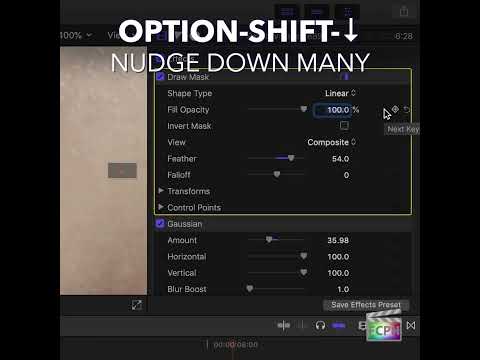
Small, precise moves are a big part of polishing an edit. Sometimes, though, a tiny nudge is too small and you need to move something farther without reaching for the mouse. That's where Option-Shift-Down Arrow comes in.
What Does Option-Shift-Down Arrow Do?
In Final Cut Pro's command set, Option-Shift-Down Arrow runs Move Down by 10, which is described as: move the selection down by 10 units.
Think of it as the big-step version of a nudge. Instead of moving one unit at a time, each press moves your selection down by 10 units, so you can cover distance quickly and then finish with smaller adjustments.
This is not a timing nudge. It doesn't move a clip earlier or later by a frame. For moving clips in time, use the comma and period keys.
How to Use It
- Select the item you want to move.
- Press Option-Shift-Down Arrow. The selection moves down by 10 units.
- Press it again for each additional 10-unit step.
- When you're close, finish with a smaller move for fine control.
Practical Tips
- Work in steps: Use the 10-unit move to get close fast, then switch to finer adjustments to land exactly where you want.
- Pair it with its opposite: Option-Shift-Up Arrow moves the selection up by 10 units, so you can back up if you overshoot.
- Try it first: Because what moves depends on what you have selected, test it on a copy of your project so you can see exactly how it behaves with your selection.
- Change it if you like: You can see this command, or assign it to a different key, in the Command Editor (Option-Command-K).
Keyboard moves are repeatable and precise, which makes them a great habit for anyone who likes to keep their hands on the keys.




Related tutorials
-
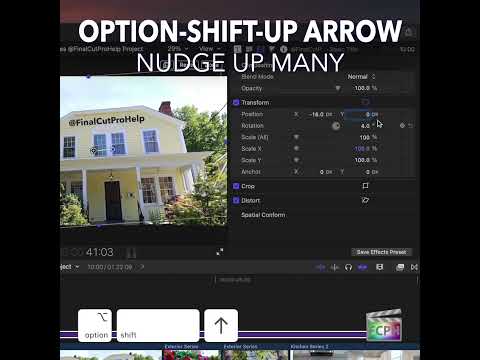
Mastering the Option-Shift-Up Arrow Shortcut in Final Cut Pro: Move Up by 10
Small, precise moves are a big part of polishing an edit. Sometimes, though, a tiny nudge is too small and you need to move something farther without…
-

Option-Down Arrow in Final Cut Pro: Move the Selection Down
In Final Cut Pro's default command set, Option-Down Arrow is the Move Down command. Apple describes it simply: it moves the selection down by one unit. It…
-

Option-Shift-, (Comma) in Final Cut Pro: Nudge an Audio Edit Point Left 10 Subframes
The Option-Shift-, (Comma) shortcut in Final Cut Pro is Nudge Audio Subframe Left Many . It nudges the selected audio edit point to the left by 10…