Mastering Audio Enhancement in Final Cut Pro: The Power of Option-Command-A
When it comes to editing video in Final Cut Pro, getting the audio just right can make or break your project. Whether you're working with crisp studio recordings or rough field audio, ensuring sound quality is polished is crucial for delivering a professional final product. That's where the Option-Command-A keyboard shortcut comes in.
This quick and effective tool automatically enhances the audio in your selected clip, improving its overall quality with minimal effort. In this post, we’ll dive into what Auto Enhance Audio does and how video editors can use it to speed up their workflow and elevate their projects.
What Does the Option-Command-A Shortcut Do?
The Option-Command-A keyboard shortcut in Final Cut Pro triggers the Auto Enhance Audio function. When applied to an audio clip, it performs a series of automatic adjustments designed to improve sound quality. These enhancements typically include:
- Volume optimization: Adjusting the audio levels to a consistent, balanced range.
- Noise reduction: Reducing background noise, hum, or unwanted sounds.
- Distortion correction: Fixing issues like clipping or audio distortion.
- Overall audio refinement: Enhancing clarity and improving tonal balance for a more professional sound.
In short, it’s a one-click solution for quickly improving audio without having to manually tweak individual settings like EQ, compression, or gain.

How Editors Can Use Auto Enhance Audio in Final Cut Pro
Here are several scenarios where Option-Command-A can be a game changer for video editors:
1. Quick Fix for Audio Problems
One of the most common challenges editors face is working with imperfect or raw audio. Whether it’s audio recorded in less-than-ideal conditions or dealing with inconsistent levels and unwanted noise, applying the Auto Enhance Audio shortcut can clean up the sound in seconds. Instead of manually adjusting each clip or isolating specific issues, you can apply a broad enhancement that improves overall audio quality.
2. Polishing Dialogue or Voiceovers
In scenes that feature lots of dialogue or voiceover work, Option-Command-A is a great way to make sure your actors’ lines come through clearly. It automatically adjusts the audio to a consistent volume level, making it easier to understand—even if there are slight fluctuations in the original recording. This is particularly helpful when working with voiceovers that might not have been recorded in ideal conditions (e.g., background hums or too-soft dialogue).
3. Streamlining Your Editing Workflow
When you're on a tight deadline and need to quickly improve the audio across multiple clips, the Auto Enhance Audio feature is a huge time-saver. Instead of manually correcting each clip’s audio settings—such as gain, EQ, and noise reduction—you can apply this function with a single keyboard shortcut. This enables you to focus more on the creative aspects of the edit, rather than getting bogged down by technical audio tweaks.
4. Cleaning Up Background Noise
In the world of audio editing, background noise can be a significant challenge, especially when working with location sound or less-than-ideal recordings. Common issues like hum, buzz, or general environmental noise can be tough to eliminate manually, but Auto Enhance Audio works by applying automatic noise reduction to make your audio sound cleaner and more professional.
5. Perfecting Audio Before Final Mix or Export
Once you've completed your rough cut and are ready to finalize the project, using Option-Command-A ensures your audio is polished and ready for export. Whether you plan to add a music bed or do a final audio mix, this enhancement will provide a solid starting point, balancing all the levels and improving overall clarity. It’s a great tool to apply before handing your project over for a professional mix or delivering the final version to your client.
Best Practices for Using Auto Enhance Audio
While Auto Enhance Audio can significantly improve the sound quality in your clips, it’s important to remember that it’s just a starting point. Here are a few tips for using it effectively:
- Check audio after enhancement: While the tool does a great job of general enhancement, always take a moment to review the audio afterward. Sometimes, manual tweaks are still needed for specific tracks.
- Apply it selectively: Use Auto Enhance Audio on individual clips or sections where you need quick improvement. For complex audio tracks with multiple issues, you may want to use this tool in conjunction with more detailed, manual adjustments.
- Balance with other audio tools: If you’re working with a complex sound mix, remember that Auto Enhance Audio is just one part of the puzzle. You might still need to use additional audio effects, such as EQ or compression, to achieve the perfect sound.
Conclusion
In the fast-paced world of video editing, anything that helps streamline the process is a valuable tool. Option-Command-A for Auto Enhance Audio in Final Cut Pro is one such feature that can save editors time while enhancing the audio quality of their projects. Whether you're improving dialogue clarity, cleaning up background noise, or just giving your audio that extra polish, this quick shortcut is a powerful ally in any editor’s toolkit.
So, the next time you find yourself grappling with audio issues, remember the magic of Option-Command-A—it could be the game-changer you need to take your project to the next level.


Related tutorials
-
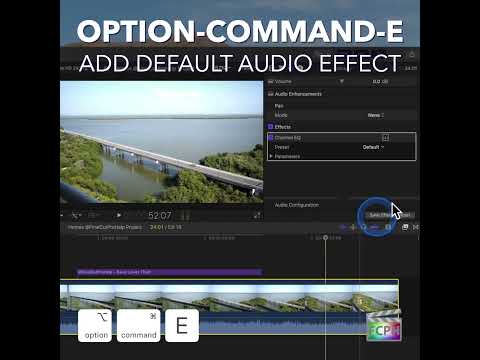
How to Speed Up Your Audio Editing Workflow in Final Cut Pro with the Option-Command-E Shortcut
If you're an editor working in Final Cut Pro , you know that audio is just as important as video when it comes to creating a polished, professional final…
-
Mastering the Option-Shift-Command-S Shortcut in Final Cut Pro: How to Use Audio Lanes to Boost Your Editing Efficiency
As a video editor working in Final Cut Pro, it's essential to have the right tools at your fingertips to streamline your workflow and stay organized…
-
How to Use the Control-Option-Command-O Keyboard Shortcut for Light and Color Enhancement in Final Cut Pro
Sometimes footage just looks a little flat: a bit dark, a bit dull, colors not quite right. In Final Cut Pro, Control-Option-Command-O runs Add Light and…