How to Use the "Show Unused Media Only" Feature in Final Cut Pro
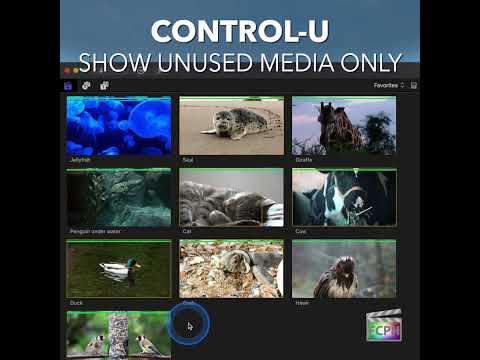
When editing in Final Cut Pro (FCP), managing your media can become overwhelming, especially with large projects that contain tons of footage. Fortunately, FCP provides powerful tools to keep your workflow efficient and organized. One such tool is the Control-U keyboard shortcut, which allows you to Show Unused Media Only in the Event Browser.
But what does that really mean, and how can editors make the most of it during their editing process? Let's dive in.
What Does "Show Unused Media Only" Do?
When you press Control-U in Final Cut Pro, it filters the clips in your Event Browser and only shows the ones that haven’t been used in the timeline yet. In other words, it highlights all the footage you’ve imported but haven’t used in your project.
This feature is incredibly helpful for maintaining an organized workflow, especially as projects grow and the amount of media you work with increases.
How Editors Can Use "Show Unused Media Only" in Their Workflow
1. Streamline Your Workflow
In the early stages of editing, it's common to import a lot of footage. Some of this media will make it into your project, while other clips may never see the light of day. By using Control-U, you can quickly identify which clips are still available to use in your timeline. This helps you focus on the clips you haven’t used yet, streamlining your editing process and reducing unnecessary distractions.
2. Stay Organized
For editors working with a large amount of footage, it can become easy to forget what has and hasn’t been used. Control-U eliminates the guesswork. When you’re deep in the editing process and need to find fresh footage, this filter helps you locate unused media without scrolling through endless bins. It’s a great way to keep your media organized and avoid redundancy.
3. Make Better Editing Decisions
By seeing only the unused clips, you’re given a clear overview of your available assets. This can inspire new ideas for your project, as you might spot a clip you overlooked earlier. Sometimes, the best shot for your project is one you haven't considered yet. Using this shortcut encourages you to review all your media before finalizing your edit.
4. Efficient Media Management
Managing media is a big part of editing, and this feature can help you ensure that no clips are left behind. In large projects, it's easy for editors to miss footage they could still incorporate. Control-U ensures that all your media gets reviewed at some point, helping you avoid wasting any useful assets.
5. Final Review Before Delivery
In the final stages of your project, when you're polishing your edit and preparing for delivery, Show Unused Media Only is perfect for doing a quick review. You can quickly check if any important clips were missed or if anything can be added to enhance the project. It’s also useful for ensuring you haven’t left any footage behind that might be important.
How to Use the Shortcut
To activate Show Unused Media Only, simply press Control-U on your keyboard while in the Event Browser. Once activated, the display will automatically filter out any clips that have been used in your project’s timeline, leaving only the unused clips visible.
Why It’s an Essential Tool for Editors
Final Cut Pro’s Show Unused Media Only feature is a powerful tool that can save you time, reduce clutter, and help you make better editing decisions. Whether you're working on a big project or just want to keep things organized, this feature will keep your workflow smooth and efficient. With Control-U, you can quickly identify unused clips, make sure you’ve considered all your footage, and stay organized as you move through the editing process.
So, next time you're deep into editing your project and need a quick way to see all the unused media, remember the Control-U shortcut—it’s a small tool with a big impact!
Final Thoughts
Incorporating shortcuts like Control-U into your editing routine is key to maximizing productivity and staying organized. Final Cut Pro offers a range of features that can optimize your workflow, and understanding how to use them efficiently will make your editing process that much smoother.
If you haven’t already, give the Show Unused Media Only feature a try next time you're in the middle of an editing session—it might just become one of your favorite time-saving tricks!



Related tutorials
-

How to Use the Control-Option-6 Keyboard Shortcut in Final Cut Pro: Show Clip Labels Only
In Final Cut Pro, Control-Option-6 runs Clip Appearance: Clip Labels Only . It changes how clips look in the timeline so they show only their labels, with…
-
How to Use the Shift-Command-H Shortcut in Final Cut Pro: A Guide to the "Show Horizon" Feature
Final Cut Pro is a powerful video editing software with an array of tools designed to help editors create polished, professional-quality content. One of…
-

How to Use the Shift-3 Shortcut to Source Audio-Only Media in Final Cut Pro
Shift-3 runs the Final Cut Pro command Source Media: Audio Only . It turns on audio-only mode, so the next clip you add to the timeline brings in only the…