How to Use the Control-Option-6 Keyboard Shortcut in Final Cut Pro: Show Clip Labels Only
Keyboard shortcut: ControlOption6

What Control-Option-6 Does
In Final Cut Pro, Control-Option-6 runs Clip Appearance: Clip Labels Only. It changes how clips look in the timeline so they show only their labels, with no filmstrip thumbnails or audio waveforms. Depending on your clip name setting, that label shows the clip name, the role name, or the active angle name. It doesn't change clip colors or anything about the clips themselves.
Why Use Labels Only?
Thumbnails and waveforms take up a lot of vertical space. With labels only, each clip becomes a slim bar, so you can see far more of a long or layered project at once. It's a great view for checking structure, finding a clip by name, or working with many connected clips.
How to Use It
- Click in the timeline to make it active.
- Press Control-Option-6. Clips shrink to labels only.
- Review your project's structure, or select clips by name.
- When you need to see picture or waveforms again, choose a different clip appearance in the timeline's view settings.
Tips
- If you want to see roles instead of clip names, change the clip name setting in the timeline's view settings. The labels-only view follows that setting.
- This is a view change only. Nothing in your edit moves or changes.
- Labels-only is especially helpful for multicam projects when you set it to show active angle names.


Related tutorials
-
How to Use the Control-Option-Command-6 Shortcut for Stereoscopic Superimposed View in Final Cut Pro
If you're an editor working with stereoscopic 3D footage in Final Cut Pro, having the right tools and shortcuts at your fingertips can make a huge…
-

How to Use the Control-Option-C Keyboard Shortcut for Adding Captions in Final Cut Pro
Final Cut Pro offers a wealth of powerful editing tools, and one of the most important features for video editors working with accessibility or…
-
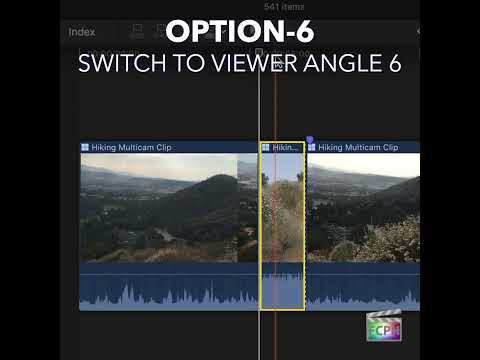
How to Use the Option-6 Shortcut in Final Cut Pro for Multi-Camera Editing
If you're an editor working with Final Cut Pro , you know that efficiency is key. Whether you're cutting a live event, interview, or a concert with…