How to Use the Shift-3 Shortcut to Source Audio-Only Media in Final Cut Pro
Keyboard shortcut: Shift3

Shift-3 runs the Final Cut Pro command Source Media: Audio Only. It turns on audio-only mode, so the next clip you add to the timeline brings in only the audio portion of your selection. It's an editing mode, not a way to separate audio from a clip that's already in your timeline.
How It Works
When you edit a clip from the Browser into your project, Final Cut Pro normally brings in both video and audio. Shift-3 changes that. With audio-only turned on, your Connect (Q), Insert (W), Append (E) and Overwrite (D) edits add only the sound. The edit buttons in the toolbar change to show that audio-only mode is on.
How to Use It
- Press Shift-3 to turn on audio-only mode.
- In the Browser, select a clip, or mark a range with I and O.
- Place the playhead or skimmer in the timeline where you want the audio.
- Press Q, W, E or D. Only the audio from your selection is added.
- When you're done, press Shift-1 to go back to adding both video and audio.
Related Shortcuts
- Shift-1 adds video and audio (the normal mode).
- Shift-2 adds video only.
When to Use It
- Grab a great line of dialogue from another take and lay it under your current picture.
- Pull room tone or natural sound from a camera clip without adding its video.
- Use the soundtrack of a clip as music or ambience under B-roll.
Tips
- The mode stays on until you change it, so remember to press Shift-1 afterward or your next edit will be missing its video.
- If a clip is already in your timeline and you want its audio as a separate clip, use Detach Audio (Control-Shift-S) instead.


Related tutorials
-
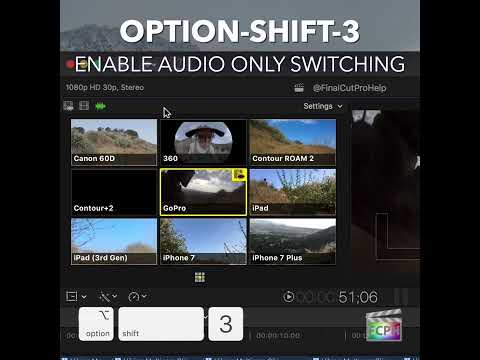
Maximizing Your Final Cut Pro Workflow with the Option-Shift-3 Shortcut: Audio-Only Multicam Switching
In Final Cut Pro, Option-Shift-3 runs Cut/Switch Multicam Audio Only . It turns on audio-only mode for multicam cutting and switching. After you press it…
-

Boost Your Editing Efficiency: How the Shift-1 Shortcut Sets Source Media to Audio and Video in Final Cut Pro
Have you ever edited a clip into your timeline and ended up with only the picture, or only the sound? That's usually the source media setting. Shift-1…
-

How to Use the Control-Shift-3 Shortcut for the Dual Displays Workspace in Final Cut Pro
Control-Shift-3 is a real Final Cut Pro shortcut. It runs the command Dual Displays , which applies the Dual Displays workspace. If you have a second…