How to Use the Option-Tab Shortcut to Speed Up Text Editing in Final Cut Pro
Keyboard shortcut: OptionTab
When you're working with text in Final Cut Pro, whether it's titles, captions, or text overlays, efficiency is key. One simple but incredibly useful keyboard shortcut that can speed up your workflow is Option-Tab. If you're not already using this, you're missing out on a faster way to navigate through text fields and make your editing process much more efficient. In this post, we'll break down how Option-Tab works and how you can use it to enhance your text editing in Final Cut Pro.
What Does Option-Tab Do in Final Cut Pro?
In Final Cut Pro, the Option-Tab shortcut is designed to help you quickly navigate through text fields within a text clip or a title template. When you're editing a text element, such as a title, caption, or subtitle, Option-Tab allows you to jump from one text box to the next.
Instead of manually clicking into each text field or using your mouse to scroll through, Option-Tab lets you cycle through them seamlessly. This is especially helpful when working with complex titles that have multiple editable text fields.
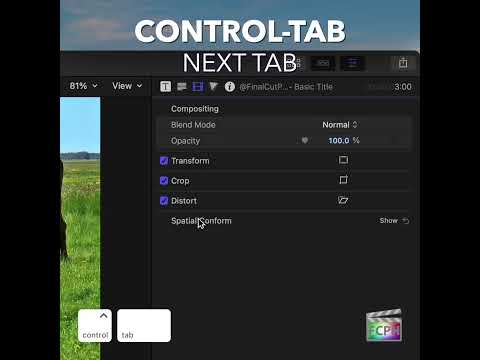
How Editors Can Use Option-Tab in Final Cut Pro
Whether you're a beginner or a seasoned editor, Option-Tab can make text editing much faster and smoother. Here are a few specific ways editors can benefit from this shortcut:
1. Edit Titles with Multiple Text Fields
Many Final Cut Pro title templates come with multiple text fields for different parts of the title, such as a main headline and a subheading, or a title with both a name and a date. Instead of selecting each text field individually with your mouse, you can use Option-Tab to cycle between the text boxes. This makes editing large text-based titles far more efficient.
For example, if you're working with a title that has separate fields for the title and the subtitle, pressing Option-Tab will allow you to quickly switch from editing the title text to the subtitle, and vice versa. This is perfect for titles where multiple elements need to be adjusted.
2. Know What Option-Tab Doesn’t Do
Option-Tab moves between text items, not between formatting controls. To change font, size, or alignment, click the setting you want in the Text Inspector. Use Option-Tab when you want to hop from one text item to the next while you’re typing.
3. Edit Captions or Subtitles More Efficiently
If you're working with captions or subtitles in Final Cut Pro, you may have many small text boxes to edit, each containing a single line or a block of text. Using Option-Tab lets you quickly switch between these lines without using the mouse, improving your speed when syncing text with video.
4. Save Time on Larger Projects
For projects that require a lot of text editing—like documentaries, interviews, or promotional videos—Option-Tab can save you tons of time. Instead of clicking through each text field or dragging your cursor around to find the next one, you can jump between text boxes with just a keystroke. This leads to a smoother and more focused editing process, especially when you're working on multiple titles or captions.
How to Use Option-Tab in Final Cut Pro
To use this shortcut:
- Select a Text Clip in the Timeline or in the Viewer.
- Click to Edit the Text in the Inspector or directly in the Viewer.
- Press Option-Tab to move between the various editable text fields within the text clip.
- Continue editing as needed.
This shortcut works for any text element that has multiple editable fields—whether it's a custom title, a subtitle, or a pre-built text effect.
Final Thoughts
The Option-Tab keyboard shortcut might seem small, but it can significantly speed up your editing process when working with text in Final Cut Pro. By allowing you to quickly cycle through multiple text fields within a title or subtitle, you can streamline your workflow, save time, and stay focused on the creative aspects of your project.
So, the next time you're editing text in Final Cut Pro, remember to use Option-Tab to jump from one field to the next. It’s a small adjustment that can make a big difference in your editing speed and efficiency.
Happy editing!


Related tutorials
-
Boost Your Final Cut Pro Workflow: Mastering the Option-Shift-Tab Shortcut for Title Text
Many titles in Final Cut Pro have more than one text item. A lower third, for example, often has a line for a name and a line for a job title…
-
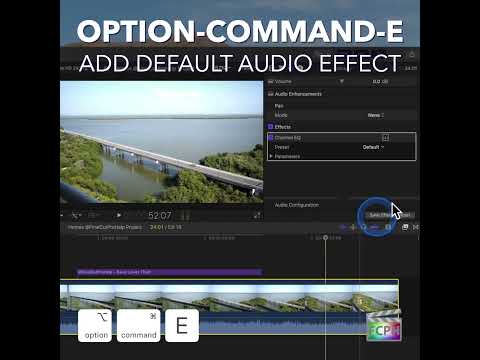
How to Speed Up Your Audio Editing Workflow in Final Cut Pro with the Option-Command-E Shortcut
If you're an editor working in Final Cut Pro , you know that audio is just as important as video when it comes to creating a polished, professional final…
-
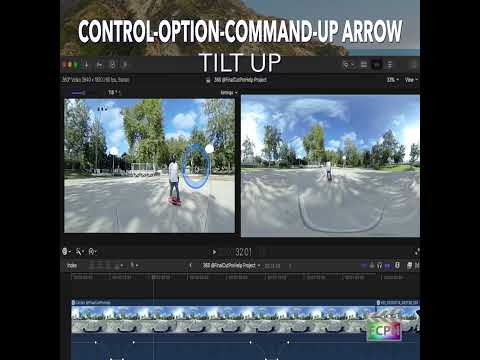
Mastering the Control-Option-Command-Up Arrow Shortcut for 360° Video Editing in Final Cut Pro
Final Cut Pro is one of the most powerful video editing tools available, offering a vast array of features for editors working with both standard and…