How to Use the Option-Shift-‘ Keyboard Shortcut in Final Cut Pro to Navigate Multicam Banks
Keyboard shortcut: OptionShiftApostrophe
If you're an editor working with multicam footage in Final Cut Pro, you know how important it is to efficiently manage and switch between multiple camera angles. Whether you're cutting a concert, a live event, or a complex scene with many different shots, keeping your editing workflow smooth and fast is essential.
One powerful shortcut that can help streamline your editing process is the Option-Shift-' (Apostrophe) keyboard shortcut. This simple command allows you to quickly cycle through Multicam Banks, making it easier to access different groups of camera angles without interrupting your creative flow.
What Are Multicam Banks in Final Cut Pro?
Before diving into the details of the shortcut, let's first define Multicam Banks. In Final Cut Pro, a Multicam Bank refers to a specific group of camera angles that are available for use during the editing process. When you’re working with a multicam clip, Final Cut Pro automatically organizes the angles into different banks, especially when there are more camera angles than can be displayed in the viewer at one time.
Each bank represents a collection of camera angles that you can switch between while editing. By grouping angles into banks, Final Cut Pro makes it easier to work with large numbers of shots without overwhelming the editor.

How to Use the Option-Shift-‘ Shortcut to Navigate Multicam Banks
The Option-Shift-' (Apostrophe) shortcut is designed to help you quickly jump from one Multicam Bank to the next. This is particularly helpful when you’re editing sequences with multiple camera angles that span across different banks.
Here’s how to use it in your editing workflow:
1. Switching Between Banks of Angles
When you’re editing multicam footage in Final Cut Pro, you'll often need to quickly switch between different camera angles to find the right shot for your sequence. If there are more angles available than can fit in the viewer at once, Final Cut Pro divides them into multiple banks.
By using the Option-Shift-‘ shortcut, you can move to the next bank of angles with ease. This allows you to jump through different groups of shots without having to manually adjust the viewer settings.
2. Efficient Multicam Editing
The ability to cycle through your camera angles efficiently is a game-changer for fast-paced editing, such as live events or dynamic performances. With Option-Shift-‘, you can quickly move between banks, selecting new angles with just a keystroke, saving you time and effort during the edit.
3. Maintain Your Creative Flow
When you're deep into the editing process, the last thing you want is to lose your creative momentum by searching through menus or fiddling with settings. The Option-Shift-‘ shortcut lets you stay in the zone, moving between different camera angles seamlessly, without breaking your focus.
Why Should Editors Use This Shortcut?
In the world of video editing, speed and efficiency are key to meeting deadlines and maintaining a smooth workflow. The Option-Shift-‘ shortcut gives editors a simple but effective way to quickly navigate between multicam banks, making it an essential tool for anyone working with complex multicam footage.
Here’s why you should use this shortcut:
- Quick Navigation: Cycle between different sets of camera angles without needing to adjust the viewer manually.
- Streamlined Workflow: Keep your editing process efficient and fluid by reducing the need for mouse-based navigation.
- Enhanced Editing Speed: In fast-paced projects, being able to jump between angles quickly can save significant time and help maintain a smooth editing rhythm.
Final Thoughts
The Option-Shift-' (Apostrophe) keyboard shortcut is a small but powerful tool in Final Cut Pro’s multicam editing toolkit. By helping you easily switch between different sets of camera angles, it allows you to stay focused and keep your editing process moving forward, no matter how complex the project.
If you're editing with multicam footage in Final Cut Pro, make sure to integrate this shortcut into your workflow. It’s a simple step that can significantly improve your efficiency and help you stay on top of your edit.
Pro Tip: Remember, keyboard shortcuts are all about enhancing your editing speed. Don’t hesitate to explore other Final Cut Pro shortcuts to further optimize your workflow!


Related tutorials
-

Mastering Final Cut Pro: How to Use the Option-Shift-; Keyboard Shortcut for Multicam Banks
In Final Cut Pro, Option-Shift-; (Semicolon) runs Go to Previous Bank . It shows the previous bank of multicam angles in the Angle Viewer. It's a multicam…
-

Option-Shift-1 in Final Cut Pro: Multicam Audio and Video Switching
When you cut a multicam clip in Final Cut Pro, each cut or switch can change the video, the audio, or both. Option-Shift-1 turns on audio/video mode , so…
-
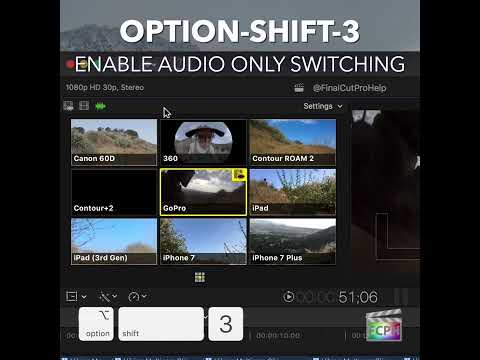
Maximizing Your Final Cut Pro Workflow with the Option-Shift-3 Shortcut: Audio-Only Multicam Switching
In Final Cut Pro, Option-Shift-3 runs Cut/Switch Multicam Audio Only . It turns on audio-only mode for multicam cutting and switching. After you press it…