How to Use the Control-Option-E Shortcut to Apply Effects Roles in Final Cut Pro
Keyboard shortcut: ControlOptionE

Roles are Final Cut Pro's way of labeling what's in your project, and the three standard audio roles are Dialogue, Music and Effects. Control-Option-E runs Roles: Apply Effects Role: it assigns Effects subroles to the selected clip's audio components. In other words, it tags your sound effects as sound effects.
What Control-Option-E Does
Select one or more clips in the timeline, press Control-Option-E, and their audio is assigned the Effects role. It doesn't add a video effect, a filter or a transition, and it doesn't apply processing to your audio. It's a label, and that label is what makes the rest of the roles workflow possible.
How to Use It
- Select the sound effect clips in your timeline: whooshes, impacts, ambience and so on.
- Press Control-Option-E.
- Check the result in the Info inspector or in the Roles pane of the Timeline Index, where the clips now appear under Effects.
Why It Helps
- Organized timeline: Clips are colored by role, so your effects are easy to spot among dialogue and music.
- Audio lanes: Turn on audio lanes (Option-Shift-Command-S) and all your Effects clips sit together in their own lane.
- Quick checks: In the Timeline Index, you can turn a role off to hear the mix without your sound effects.
- Stems on export: When you share your project, you can export roles as separate files, so your effects can be delivered as their own stem.
Tips
The other standard audio roles have matching shortcuts: Control-Option-D for Dialogue and Control-Option-M for Music. Tag your clips as you go and your mix and exports will be far easier at the end of the project. If you need more detail, create subroles such as Foley or Ambience under Effects in the Role Editor.



Related tutorials
-

How to Use the Control-Option-D Shortcut to Apply Dialogue Role in Final Cut Pro
Final Cut Pro is a powerful video editing tool used by professionals and hobbyists alike. One of its key features is the ability to organize and manage…
-
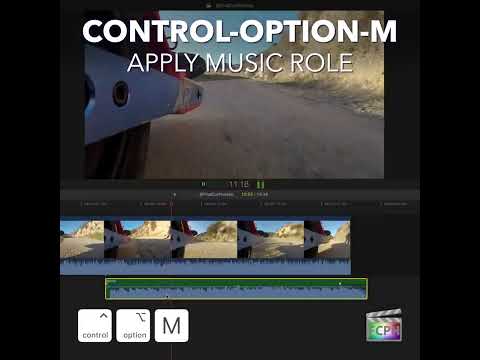
How to Use the Control-Option-M Shortcut to Apply the Music Role in Final Cut Pro
If you're working in Final Cut Pro and frequently handle audio in your projects, you know that managing and organizing audio clips can quickly become a…
-
Mastering Roles in Final Cut Pro: How to Use the Control-Option-Command-S Shortcut to Expand/Collapse Subroles
Final Cut Pro is known for its powerful tools and features, enabling editors to efficiently organize, edit, and refine complex video projects. One of the…