How to Use the Control-Command-W Keyboard Shortcut in Final Cut Pro to Show the Video Waveform
Keyboard shortcut: ControlCommandW

Your eyes can be fooled by a bright screen or a dark room, but a video scope can't. In Final Cut Pro, Control-Command-W runs Show Video Waveform: it shows the Waveform Monitor in the Viewer.
What the Video Waveform Shows
The Waveform Monitor is a video scope, not an audio display. It graphs the brightness of your image from left to right across the frame. The bottom of the scale is black and the top is the brightest white. Bright areas of the picture climb toward the top of the scope, and dark areas sit near the bottom. (The audio waveforms you see on clips in the timeline are a different thing entirely.)
How to Use It
- Park the playhead on the clip you want to check.
- Press Control-Command-W. The Waveform Monitor appears in the Viewer area next to your image.
- Look at the trace. If it's pressed flat against the top, highlights are clipping. If it's crushed at the bottom, shadow detail is being lost.
- Adjust exposure or contrast with your color tools and watch the trace move as you work.
Practical Uses
- Check exposure objectively, especially on a laptop screen where brightness changes.
- Match shots by comparing where faces or skies sit on the scope from one clip to the next.
- Stay within limits before delivery by making sure the brightest parts of your image aren't blown out.
Tips
The scope's settings let you change how the waveform is displayed, for example to show separate red, green and blue channels. You can also show video scopes from the View menu or with Command-7. Get in the habit of glancing at the waveform whenever you color correct, and your images will be more consistent from shot to shot.


Related tutorials
-

How to Use the Control-Command-1 Shortcut in Final Cut Pro to Show/Hide the Browser
If you're an editor using Final Cut Pro , you’re probably aware of how important it is to have a clean and efficient workspace. One feature that can help…
-

How to Use the Control-Option-Command-Right Arrow Shortcut in Final Cut Pro for 360° Video Editing
If you're working with 360-degree video in Final Cut Pro , one of the most helpful tools at your disposal is the ability to quickly navigate your footage…
-
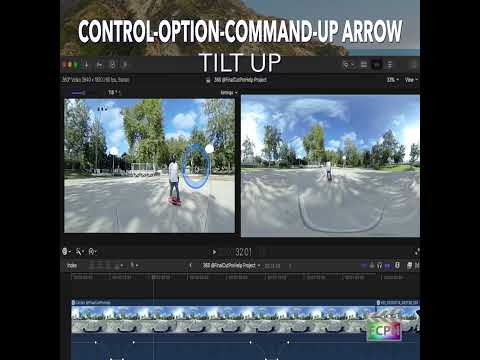
Mastering the Control-Option-Command-Up Arrow Shortcut for 360° Video Editing in Final Cut Pro
Final Cut Pro is one of the most powerful video editing tools available, offering a vast array of features for editors working with both standard and…