Boost Your Editing Speed with the Shift-Down Arrow Shortcut in the Final Cut Pro Browser
Keyboard shortcut: ShiftDown Arrow

When you’re organizing footage, you often want to grab a run of clips and do the same thing to all of them. In Final Cut Pro, Shift-Down Arrow is Extend Selection Down. In the Browser, it adds the next clip to your selection.
What Shift-Down Arrow Does
With a clip selected in the Browser, press Shift-Down Arrow and the next clip is added to what you already have selected. Press it again and the selection keeps growing, one clip at a time. It’s a keyboard alternative to Shift-clicking.
Note that this is a Browser command. It isn’t for selecting clips in the Timeline.
How to Use It
- In the Browser, switch to list view so your clips are stacked in rows. This makes the "next clip" easy to see.
- Click the first clip you want.
- Press Shift-Down Arrow to add the clip below it to the selection.
- Keep pressing until you’ve selected all the clips you need.
- Now act on the whole group at once.
What to Do With Your Selection
- Add keywords: Press a keyword shortcut like Control-1, or open the Keyword Editor with Command-K, to tag every selected clip.
- Rate them: Press F to mark them as favorites.
- Edit them in: Press E to append the selected clips to the end of your project.
- Update metadata: Change information for the whole group in the Info Inspector.
Tips
- Sort the Browser first (by name, date, or duration) so the clips you want sit next to each other.
- If you select one clip too many, Command-click it to remove it from the selection.
Shift-Down Arrow is a small shortcut, but when you’re logging a big shoot, it keeps your hands on the keyboard and your organizing moving fast.



Related tutorials
-
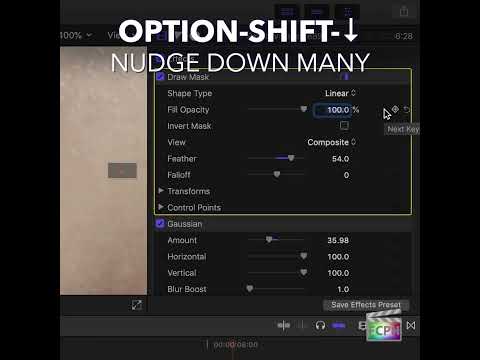
Mastering the Option-Shift-Down Arrow Shortcut in Final Cut Pro: Move Down by 10
Small, precise moves are a big part of polishing an edit. Sometimes, though, a tiny nudge is too small and you need to move something farther without…
-

How to Use the Shift-Command-Right Arrow Keyboard Shortcut in Final Cut Pro for Multi-Camera Editing
When it comes to editing footage shot with multiple cameras, efficiency is key. Editors often need to switch between different camera angles quickly to…
-

Option-Down Arrow in Final Cut Pro: Move the Selection Down
In Final Cut Pro's default command set, Option-Down Arrow is the Move Down command. Apple describes it simply: it moves the selection down by one unit. It…