Unlock Efficient Editing with Final Cut Pro’s Control-; (Semicolon) Shortcut: Navigate to Previous Marker Like a Pro
Keyboard shortcut: ControlSemicolon
If you’re an editor working with Final Cut Pro, you know how crucial it is to navigate your timeline quickly and accurately. One of the hidden gems in Final Cut Pro's vast array of keyboard shortcuts is the Control-; (Semicolon) shortcut, which lets you jump to the previous marker in your timeline. If you're not already using this shortcut, you're missing out on a simple yet powerful tool that can streamline your editing workflow.
In this post, we’ll explain what this shortcut does and how it can improve your editing process.
What Does the Control-; (Semicolon) Shortcut Do?
The Control-; keyboard shortcut in Final Cut Pro moves the playhead to the previous marker in your timeline. Markers are used in Final Cut Pro to mark important points of interest in your project—whether it’s a key moment in your video, a sync point for audio and video, or a place where you want to add a visual effect or transition.
Markers can be placed manually (using M on your keyboard) or automatically (during processes like syncing clips). Once they’re in place, you can use Control-; to quickly jump between them, making it easy to navigate back to specific points in your project without scrolling manually.

How Editors Use the Control-; Shortcut in Final Cut Pro
Whether you're working on a feature film, a commercial, or a quick social media edit, this simple shortcut can significantly improve your editing efficiency. Here’s how editors typically use Control-;:
1. Navigate to Important Points Quickly
Markers often serve as signposts in your timeline, marking key moments like scene changes, crucial cuts, or audio sync points. Instead of scrolling through your timeline to find these markers, you can simply hit Control-; to jump directly to the previous marker, saving you time and keeping you focused.
2. Review and Fine-Tune Edits
When editing, you’ll likely place markers to help you remember where certain actions need to happen, like where to add a transition or effect. After placing a series of markers throughout your project, you can use Control-; to quickly jump back to each one to review, tweak, or refine your work.
3. Efficiently Work with Multiple Markers
In more complex projects, you might have dozens (or even hundreds) of markers placed throughout your timeline. Navigating to each one manually can become time-consuming and frustrating. By using Control-;, you can quickly skip to each previous marker, ensuring you never lose track of key moments in your edit.
4. Combine with Other Editing Shortcuts
The Control-; shortcut doesn’t exist in isolation. It’s part of a broader system of keyboard shortcuts designed to speed up your editing process. After using Control-; to jump to a marker, you can quickly apply edits, such as trimming clips, adding transitions, or adjusting effects, all without interrupting your flow.
For example:
- Use Control-; to move to the previous marker.
- Use Command-B to split clips.
- Use Command-T to add a transition.
The combination of these shortcuts allows you to stay in the zone and perform precise edits efficiently.
Why Using Shortcuts Like Control-; Is Essential for Pro Editors
As any professional editor will tell you, speed and precision are essential when working on tight deadlines. The more you rely on keyboard shortcuts like Control-;, the less time you spend clicking around and scrolling, and the more time you can focus on refining your creative vision.
Final Cut Pro offers a wide range of shortcuts for different tasks, and Control-; is just one of many that can significantly enhance your editing workflow. Learning and mastering these shortcuts will make you a faster, more efficient editor and help you get the most out of your editing sessions.
Final Thoughts
Whether you’re a beginner or a seasoned pro, Control-; is a shortcut you’ll want to incorporate into your editing workflow. By allowing you to quickly navigate between markers, it saves time and helps you stay organized while working on your Final Cut Pro projects.
So, the next time you're working through a timeline filled with markers, try hitting Control-; and see how much faster you can move through your project. It’s a small shortcut that can make a big difference in your editing speed and efficiency.
Happy editing!


Related tutorials
-

How to Use the Control-Shift-S Keyboard Shortcut in Final Cut Pro to Detach Audio
Final Cut Pro is a powerful video editing software used for everything from basic edits to complex productions. One of its most useful features is the…
-
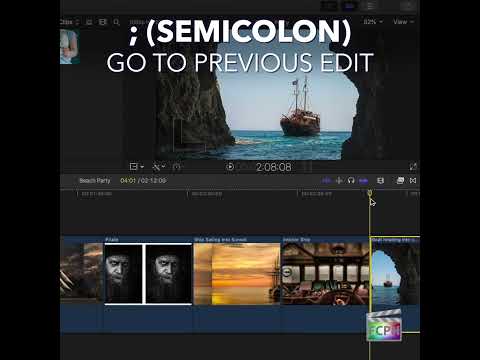
How to Use the ; (Semicolon) Shortcut to Navigate Edits in Final Cut Pro
When editing in Final Cut Pro , speed and precision are key to a smooth workflow. One of the most helpful yet underutilized keyboard shortcuts for…
-

Mastering the Control-S Shortcut in Final Cut Pro: Expand Audio/Video for Split Edits
Final Cut Pro keeps a clip's video and audio together in one piece, which keeps everything in sync. But to make J-cuts and L-cuts, you need to work on the…