How to Use the ; (Semicolon) Shortcut to Navigate Edits in Final Cut Pro
Keyboard shortcut: Semicolon
When editing in Final Cut Pro, speed and precision are key to a smooth workflow. One of the most helpful yet underutilized keyboard shortcuts for speeding up your editing process is the semicolon (;), which allows you to go to the previous edit in your timeline. In this post, we’ll explore how this simple shortcut can enhance your editing process and help you work more efficiently.
What Does the ; (Semicolon) Shortcut Do?
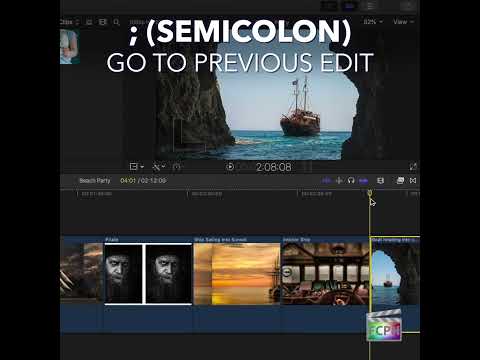
In Final Cut Pro, the ; (Semicolon) shortcut moves the playhead to the previous edit point on your timeline. An edit point is any place in the timeline where one clip ends and the next one begins, such as a cut you made with the Blade tool or the boundary between two clips.
This means the ; key allows you to quickly jump back to the edit point before the playhead, making it much easier to refine your work, review transitions, or adjust clip timing without manually scrolling through your project.
How Do Editors Use the Semicolon Shortcut in Final Cut Pro?
- Streamlining Your Workflow
If you're working on a complex project with multiple edits, transitions, and clips, moving between those edit points manually can be time-consuming and cumbersome. The ; shortcut allows you to quickly jump to the last edit, making it easier to review or adjust specific changes in your timeline without losing focus or wasting time navigating. - Refining Edits Quickly
Suppose you’ve just made a cut or trim to a clip and want to review how it fits in with the surrounding content. Instead of dragging the playhead back through the timeline, simply pressing ; will take you directly to the previous edit, so you can immediately review and adjust the edit you just made. - Reviewing Transitions and Adjustments
This shortcut is also helpful when working with transitions or effects between clips. After adding a transition, you can use the ; key to jump back to the edit point and tweak the transition duration or adjust other parameters without searching through your timeline. - Navigating Multiple Edits
When you’ve made a series of cuts or edits throughout a sequence, the ; shortcut allows you to move backward through those edits, one by one. This is especially useful when reviewing long sequences where many changes have been made, helping you track down specific edits for further adjustments.
How to Use the Semicolon Shortcut in Practice
To use the ; shortcut in Final Cut Pro:
- Navigate to your timeline where you’ve made some edits or cuts.
- Press the ; (Semicolon) key on your keyboard.
- The playhead will jump to the previous edit point in your timeline, making it easier to refine or adjust that section of your edit.
You can continue pressing ; to jump further back through previous edits, allowing you to navigate your timeline in a precise, non-linear way.
Why Editors Love the Semicolon Shortcut
Final Cut Pro is a powerful tool, but it can become overwhelming when working with long and complex timelines. The ; (semicolon) shortcut helps editors work smarter, not harder, by providing instant access to previous edits, whether they’re fine-tuning cuts, adjusting audio levels, or reviewing transitions.
By incorporating this simple shortcut into your workflow, you can speed up your editing process and improve your overall efficiency, making it easier to focus on creativity instead of navigating through tedious timeline adjustments.
Conclusion
The semicolon (;) keyboard shortcut in Final Cut Pro may seem small, but it’s a game-changer for editors who want to work faster and more efficiently. By quickly jumping to previous edit points, you can streamline your workflow, make faster adjustments, and maintain a precise editing process.
So, next time you're editing a complex sequence, remember: a quick tap of the semicolon can save you time and effort, helping you get your project finished faster while ensuring your edits are just right.




Related tutorials
-

Unlock Efficient Editing with Final Cut Pro’s Control-; (Semicolon) Shortcut: Navigate to Previous Marker Like a Pro
If you’re an editor working with Final Cut Pro, you know how crucial it is to navigate your timeline quickly and accurately. One of the hidden gems in…
-

How to Use the Option-; (Semicolon) Keyboard Shortcut for Editing in Final Cut Pro
Final Cut Pro is a powerful editing software used by professionals and enthusiasts alike. One of the key features that gives editors precise control over…
-

Mastering the Control-S Shortcut in Final Cut Pro: Expand Audio/Video for Split Edits
Final Cut Pro keeps a clip's video and audio together in one piece, which keeps everything in sync. But to make J-cuts and L-cuts, you need to work on the…