The Tab Key in Final Cut Pro: Not a Default Shortcut (and How to Assign One)
Keyboard shortcut: Tab

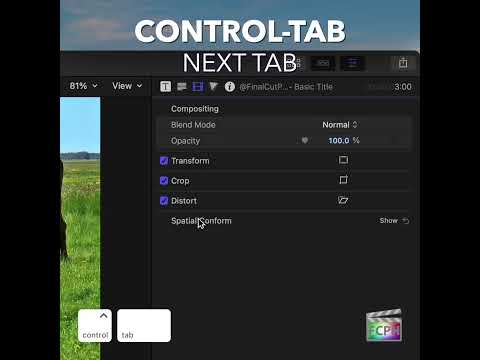
You might expect the Tab key to jump between the Timeline, Viewer, Inspector and Browser in Final Cut Pro. It doesn't. In Final Cut Pro's default command set, Tab isn't assigned to any command at all.
What Tab Does Do
When you're typing in a text or number field, such as a metadata field in the Info inspector, Tab works the way it does in most Mac apps and moves you to the next field. Outside of a field, pressing Tab on its own doesn't run a Final Cut Pro command.
How to Move Between Panels Instead
If your goal is to move around the interface without the mouse, use the built-in "Go to" shortcuts:
- Command-1 makes the Browser active.
- Command-2 makes the Timeline active.
Knowing which area is active matters, because many shortcuts act on whichever part of the window has focus.
How to Assign a Command to Tab
If you'd like Tab to do something useful, you can assign it yourself in the Command Editor:
- Press Option-Command-K to open the Command Editor.
- If you're using the Default command set, duplicate it first, since the default set can't be changed.
- Type the name of the command you want in the search field.
- Drag the command from the Command List onto the Tab key in the keyboard image.
- Click Save.
Tips
- Before you assign a command, click the Tab key in the keyboard image to check whether your custom set already uses it.
- Keep in mind that Tab still moves between fields while you type, so pick a command you'll use when you're not entering text.
The Tab key isn't a built-in Final Cut Pro shortcut, but with a minute in the Command Editor you can make it one.



Related tutorials
-

Option-Command-Click in Final Cut Pro: Not a Default Keyboard Shortcut (How to Move Clip Connections)
If you search Final Cut Pro's default command set for Option-Command-Click , you won't find it. It isn't a default keyboard shortcut in Final Cut Pro's…
-
Boost Your Final Cut Pro Workflow: Mastering the Option-Shift-Tab Shortcut for Title Text
Many titles in Final Cut Pro have more than one text item. A lower third, for example, often has a line for a name and a line for a job title…
-
How to Use the Option-Tab Shortcut to Speed Up Text Editing in Final Cut Pro
When you're working with text in Final Cut Pro , whether it's titles, captions, or text overlays, efficiency is key. One simple but incredibly useful…