Mastering the Shift-R Keyboard Shortcut in Final Cut Pro: A Game-Changer for Editors
Keyboard shortcut: ShiftR
When it comes to video editing, speed and efficiency are crucial. Final Cut Pro offers a variety of shortcuts and tools that help editors work faster, and one of the most powerful but often overlooked shortcuts is Shift-R – the Replace function.
In this post, we’ll explore what the Shift-R keyboard shortcut does in Final Cut Pro, and how it can help editors quickly swap out clips while maintaining the integrity of their edit.
What Does the Shift-R Shortcut Do in Final Cut Pro?
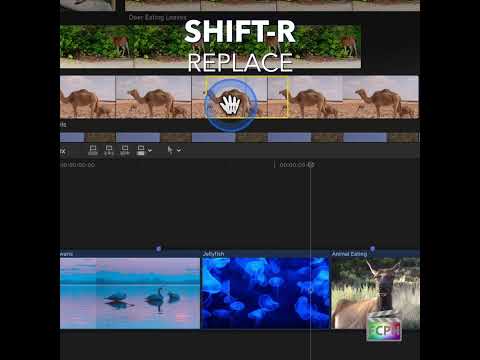
In Final Cut Pro, the Shift-R shortcut is used for replacing a clip in your timeline with another clip from your Browser or Event Library. The new clip lands in the same spot in your timeline. Keep in mind that a standard Replace uses the duration of the new clip (or the range you selected in the Browser), so if it's longer or shorter than the old clip, the clips after it shift to make room.
How to Use Shift-R: A Step-by-Step Guide
Here’s how editors can take advantage of the Shift-R shortcut when working with Final Cut Pro:
- Select the Clip in the Timeline: Start by selecting the clip you want to replace in the timeline. This can be any clip—video, audio, or both—that you want to swap out for another one.
- Find Your New Clip in the Browser: Next, head to your Browser (the panel where your media files are displayed). Locate the new clip that you want to use as a replacement. You can browse your Event Library or search for the specific clip if you’re working with a larger project.
- Press Shift-R: With the new clip selected in the Browser, simply press the Shift-R keyboard shortcut. This will instantly replace the clip in your timeline with the selected clip from the Browser.
What Happens Next?- The new clip takes the place of the old one: The new clip goes into the same position in the timeline, starting where the old clip started.
- The new clip’s duration is used: The replacement takes the duration of the new clip or Browser range, so later clips may move. If you need to keep the original clip’s duration, use Replace from Start (Option-R) instead.
- Audio/Video Sync: Both the video and audio components of the selected clip will be replaced, maintaining the sync between them.
- Effects: Effects and adjustments on the old clip don’t carry over to the new one. If you need them, copy the old clip before replacing it, then use Paste Attributes on the new clip.
Why Editors Love Shift-R: Key Benefits
The Shift-R shortcut is invaluable for video editors, especially when making quick adjustments or replacing clips mid-project. Here are a few reasons why this tool is a game-changer:
- Save Time: Instead of manually dragging a new clip to the timeline and adjusting its timing, you can instantly replace a clip in the same location.
- Keep Your Place: The new clip lands exactly where the old one started, so you don’t have to hunt for the right spot in a busy timeline.
- Non-Destructive Editing: Replacing a clip with Shift-R doesn’t touch your source media, and the clips before it stay put. Clips after it move only if the new clip’s duration is different.
- Perfect for Quick Fixes: If you need to replace a low-quality clip, update a piece of media, or swap out footage without messing with the overall flow of the project, Shift-R is the fastest and most efficient solution.
Use Cases for Shift-R in Real Editing Scenarios
Editors commonly use Shift-R in a variety of situations. Here are some examples:
- Swapping B-Roll: If you want to replace a piece of B-roll footage with a higher-quality version, you can quickly do so right in place. If the new version is a different length and you need to keep the timing, use Option-R instead.
- Replacing Audio: For audio edits, you can replace a voiceover or soundbite in the timeline with an updated version, starting at exactly the same spot.
- Fixing Mistakes: If you’ve mistakenly used a clip that’s not up to standard (e.g., incorrect shot, poor quality, etc.), you can replace it with a better one while keeping everything else intact.
Conclusion: Boost Your Editing Speed with Shift-R
Mastering keyboard shortcuts in Final Cut Pro can significantly speed up your workflow, and Shift-R is one of the most useful tools to have in your editing arsenal. Whether you’re replacing a clip with another, swapping out audio, or making quick fixes, this function allows you to work efficiently without disrupting your timeline or creative flow.
Give Shift-R a try in your next editing session—you’ll be amazed at how much faster and smoother your editing process becomes!


Related tutorials
-
How to Use the Option-Shift-R Keyboard Shortcut for Voiceover Recording in Final Cut Pro
Recording narration straight into your project is one of Final Cut Pro's most useful features, and Option-Shift-R makes it quicker. This shortcut runs…
-

How to Use the Control-Shift-R Keyboard Shortcut to Render All in Final Cut Pro
If you’re an editor using Final Cut Pro , you know that maintaining smooth playback is essential to your workflow. Whether you’re working with…
-

How to Use the Shift-Command-R Shortcut in Final Cut Pro to Reveal Media in the Finder
Every clip in Final Cut Pro points to a real media file somewhere on your drives. When you need to find that file, press Shift-Command-R . It runs Reveal…