Using the Option-Left Arrow Shortcut in Final Cut Pro to Move Clips Left
Keyboard shortcut: OptionLeft Arrow

What Option-Left Arrow Does
In Final Cut Pro, Option-Left Arrow runs Move Left. It moves the selected clip to the left so it swaps places with the previous clip. Instead of dragging a clip around and hoping it lands in the right spot, you can reorder your edit with one keystroke.
It isn't a text-field or marker navigation shortcut. It changes the order of clips in your project.
Where It Works
Use it in the timeline. Select a clip and press Option-Left Arrow, and the clip trades places with the clip before it. The rest of your edit stays in order around it.
How to Use It
- Click a clip in the timeline to select it.
- Press Option-Left Arrow. The clip swaps with the clip to its left.
- Press it again to keep moving the clip earlier, one clip at a time.
- Play back the section to check the new order.
Tips
- It's a fast way to test whether a shot works better earlier in a sequence. If you don't like it, press Command-Z to undo.
- Because the clip swaps with its neighbor rather than overwriting it, you won't leave gaps or lose footage.
- Combine it with the Up and Down Arrow keys to jump between edit points and check each cut after you reorder.


Related tutorials
-

How to Use the Control-Option-Command-Left Arrow Shortcut to Pan 360° Video in Final Cut Pro
If you're working with 360° video in Final Cut Pro , you're probably familiar with the complexities of navigating a spherical video environment. Editing…
-
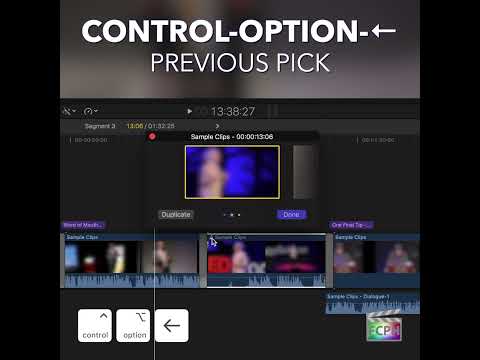
Mastering the Control-Option-Left Arrow Shortcut in Final Cut Pro for Auditions
Auditions are one of the best ways to compare takes in Final Cut Pro without cluttering your timeline. Control-Option-Left Arrow is the Previous Pick…
-

How to Use the Option-Shift-Left Arrow Shortcut in Final Cut Pro: Navigating Audio Angles in Multi-Camera Edits
If you're an editor working with multi-camera footage in Final Cut Pro , you've likely encountered situations where you need to quickly switch between…