Mastering the Control-1 Keyboard Shortcut in Final Cut Pro for Efficient Editing
Keyboard shortcut: Control1
Final Cut Pro is a powerful video editing tool, and one of its standout features is its ability to help editors stay organized—especially when dealing with large amounts of footage. One of the most effective ways to keep track of clips and media is by using keywords. And to make this process even more efficient, Final Cut Pro offers several keyboard shortcuts, including the Control-1 shortcut to quickly apply Keyword Tag 1 to selected clips. Here's everything you need to know about how and why you'd use this shortcut in your editing workflow.
What Does Control-1 Do in Final Cut Pro?
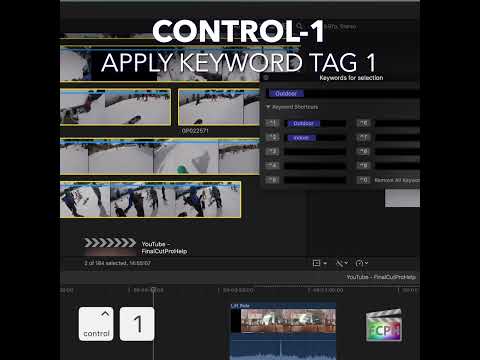
In Final Cut Pro, Control-1 is the keyboard shortcut for applying Keyword Tag 1 to a selected clip (or group of clips). Keywords act as tags or labels that allow you to categorize your clips and make them easier to find later. Whether you're sorting footage by shot type, scene, or any other criteria, using keywords ensures you can stay organized throughout your project.
When you press Control-1, it instantly applies the keyword in shortcut slot 1 of the Keyword Editor to the selected clips (or range). This is a huge time-saver, especially when you're editing large projects that involve numerous clips and media files.
How Editors Use the Control-1 Shortcut
Using Control-1 while editing is all about boosting your efficiency. Here’s how editors typically incorporate this shortcut into their workflow:
- Tagging Clips Quickly
Editors often need to tag clips with specific keywords to keep everything organized. Instead of manually tagging each clip, they can simply select the clips they want to tag and press Control-1. The keyword in shortcut slot 1 is then automatically applied. This is especially useful for repetitive tasks like labeling B-roll, interviews, or specific shot types (e.g., "Wide Shot," "Close Up"). - Staying Organized While Working
When you’re working with a massive amount of footage, organization is key. By tagging clips with relevant keywords as you go, you can quickly sort and filter through your media. This ensures that you're always able to find exactly what you need without wasting time hunting through your project files. - Enhancing Search and Filtering Capabilities
Once clips are tagged with keywords, you can use Final Cut Pro's powerful search and filtering tools to find them later. For example, if you've tagged clips with the keyword "Interview," you can quickly search for all "Interview" clips in the browser. Using Control-1 and other keyboard shortcuts to tag clips throughout the editing process makes searching faster and more effective. - Improving Workflow Speed
Final Cut Pro offers a wide range of keyboard shortcuts for efficiency, but the Control-1 shortcut stands out because of how it speeds up the tagging process. Instead of having to stop and manually apply a keyword through the menus, pressing Control-1 allows you to apply a keyword instantly, helping you stay focused on the creative side of editing.
Setting Up Keywords in Final Cut Pro
Before you can effectively use Control-1, you'll need to have your keywords set up in Final Cut Pro. Here’s how to do it:
- Open the Keyword Editor
In Final Cut Pro, go to the Keyword Editor by clicking the Keywords button in the toolbar or by pressing Command-K. - Create Your Keyword List
Once in the Keyword Editor, you can create and manage your keyword tags. Open the Keyword Shortcuts section to see nine shortcut slots; whatever keyword you type in slot 1 is applied when you press Control-1. - Assign Keywords to Clips
After you've set up your keywords, you can easily assign them to clips by selecting a clip (or clips) in the browser or timeline and then pressing Control-1. You can customize the other keyword tags to match your needs and use shortcuts for those as well (e.g., Control-2, Control-3, etc.).
Conclusion: Why You Should Use Control-1 in Your Final Cut Pro Workflow
The Control-1 keyboard shortcut is a small but mighty tool that can significantly enhance your workflow in Final Cut Pro. By allowing you to quickly and easily apply keyword tags to your clips, it saves time and helps you stay organized while editing. Whether you're working on a short video or a feature-length project, staying on top of your footage with keywords will help you find what you need fast and keep your editing process efficient.
So, next time you're working in Final Cut Pro, don’t forget to use Control-1 (and other keyword shortcuts) to make tagging your clips faster, smoother, and more organized.




Related tutorials
-

How to Use the Control-Command-1 Shortcut in Final Cut Pro to Show/Hide the Browser
If you're an editor using Final Cut Pro , you’re probably aware of how important it is to have a clean and efficient workspace. One feature that can help…
-

How to Use the Control-Shift-1 Shortcut for the Organize Workspace in Final Cut Pro
Final Cut Pro includes built-in workspaces, which are window layouts for different kinds of work. Control-Shift-1 switches to the Organize workspace, a…
-

How to Use the Control-Option-1 Keyboard Shortcut in Final Cut Pro for Audio Waveform Editing
When you're editing video in Final Cut Pro , sometimes you need to focus purely on the audio without the distraction of video clips. Whether you're…