Mastering Multi-Camera Edits in Final Cut Pro: The Power of Option-7
When you're editing a multi-camera production in Final Cut Pro, speed and efficiency are key. Whether you're cutting between multiple angles of a live event, a film scene, or a music video, having the ability to seamlessly switch between different camera views can make all the difference. One powerful shortcut that editors often rely on is Option-7. But what does it do, and how can you use it to streamline your workflow? Let's break it down.
What Is Option-7 in Final Cut Pro?
In Final Cut Pro, the Option-7 keyboard shortcut is used to switch to Viewer Angle 7 during a multi-camera edit. But why is this useful? When you’re working with multicam clips—which combine multiple camera angles from the same scene—Final Cut Pro allows you to view and edit from any of those angles. If you have seven or more camera angles in your multicam clip, you can use Option-7 to quickly switch to and view the footage from Angle 7.
This feature is part of a larger system that lets you rapidly switch between different angles without interrupting your creative flow. If you've ever been involved in a project with multiple cameras, you know how important it is to compare shots and find the best take quickly. Option-7, along with other angle shortcuts, helps you do just that.

How Does Multi-Camera Editing Work in Final Cut Pro?
Before diving into the specifics of Option-7, it’s important to understand how multi-camera editing works in Final Cut Pro:
- Multicam Clip Creation: You start by creating a multicam clip, which syncs all of your camera angles based on timecode, audio, or markers.
- Viewer Angles: Each camera angle is assigned a unique "Viewer Angle" number (e.g., Viewer Angle 1, Angle 2, Angle 3, etc.). These angles correspond to the different cameras or takes used in the shot.
- Live Editing: When you start playing through your timeline, Final Cut Pro enables you to "live edit" by switching between angles in real-time. You can select which angle you want to show in the final edit without needing to manually cut between them.
How to Use Option-7 While Editing
The Option-7 keyboard shortcut is just one of several shortcuts available for quickly switching between different angles in your multicam clip. Here's how editors use it to enhance their workflow:
1. Review and Compare Different Angles
When working with multicam footage, you'll often need to compare shots from different cameras to find the best take. For example, in a live performance, one camera might have a close-up of the singer, while another might show a wide shot of the crowd. By using Option-7 (along with Option-1 through Option-9 for other angles), you can quickly jump to a specific angle and decide which shot works best in that moment.
2. Switch During Live Edits
One of the most powerful uses of Option-7 comes when you're performing a live edit. In this case, you’re playing through your timeline, and as the footage plays, you switch between camera angles in real-time to create the cut. Using keyboard shortcuts like Option-7 helps you make these switches without interrupting your workflow, keeping the pace of the edit smooth and fast.
3. Speed Up Your Editing Process
When editing a complex scene with several angles, switching manually through menus or clicking on each angle can slow you down. By using shortcuts like Option-7, you can stay focused on the task at hand without wasting time. With the right muscle memory, you’ll find yourself able to move between angles as quickly as you can think, keeping the editing process efficient and precise.
4. Quick Angle Access Without the Mouse
One of the main benefits of using keyboard shortcuts like Option-7 is that you don’t have to reach for your mouse or trackpad. In a fast-paced editing session, this reduces strain on your hands and allows you to stay focused on your edits without breaking your rhythm.
Other Helpful Shortcuts for Multi-Camera Editing
While Option-7 is great for quickly jumping to Viewer Angle 7, there are other shortcuts in Final Cut Pro that can help you speed up your multi-camera workflow:
- Option-1 through Option-9: These shortcuts correspond to different Viewer Angles (1 to 9), making it quick to jump to the camera you want to view. If you have fewer than 9 angles in your multicam clip, the remaining keys will simply do nothing.
- Command-Shift-1: Opens the Multicam Viewer, where you can see all available angles at once.
- Shift-1, Shift-2, etc.: These keys allow you to toggle through the angles without the option key, depending on your setup.
Why Editors Love Option-7
For editors working on high-stakes or time-sensitive projects, every second counts. Whether you're editing a fast-paced event or putting together a multi-cam performance, Option-7 helps you stay on top of the angles and cuts. It’s a simple but powerful tool for keeping your editing process smooth and efficient.
By mastering Option-7 and incorporating it into your workflow, you’ll be able to make more precise decisions faster. That’s the magic of keyboard shortcuts: they allow you to focus more on the creative side of editing and less on the mechanics of navigating the software.
Final Thoughts
In conclusion, the Option-7 shortcut in Final Cut Pro is a game-changer for multi-camera editing. It allows editors to quickly jump to and view specific camera angles, making it easier to find the perfect shot and keep the pace of your edit moving. By learning to use this and other multi-camera shortcuts, you can streamline your workflow and become a more efficient editor.
Have you used Option-7 in your edits before? How has it helped you with multi-camera projects? Let us know in the comments below!




Related tutorials
-

How to Use the Option-Shift-Left Arrow Shortcut in Final Cut Pro: Navigating Audio Angles in Multi-Camera Edits
If you're an editor working with multi-camera footage in Final Cut Pro , you've likely encountered situations where you need to quickly switch between…
-
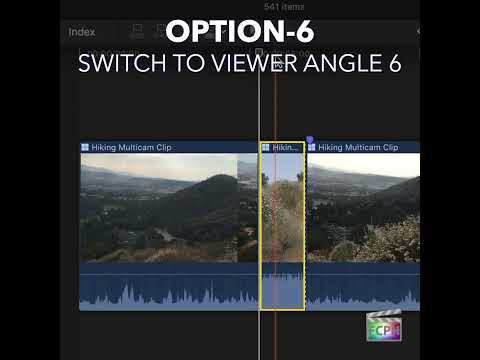
How to Use the Option-6 Shortcut in Final Cut Pro for Multi-Camera Editing
If you're an editor working with Final Cut Pro , you know that efficiency is key. Whether you're cutting a live event, interview, or a concert with…
-

How to Use the Option-4 Shortcut for Multi-Camera Editing in Final Cut Pro
If you're an editor working with Final Cut Pro and multi-camera footage, you know how crucial it is to be able to switch between different camera angles…